App Store Connect Keywords: How to Set Them Right
Learn how App Store Connect keywords work: the 100-byte limit, comma rules, localization, custom product pages and the mistakes that waste your space.
LetsDeployIt Team ·
You've built the app, polished the screenshots, and now you're staring at a single empty box in App Store Connect labeled Keywords. It looks minor. It isn't. What you type there helps decide which searches surface your app at all, and you get very little room to get it right. Treat App Store Connect keywords as routing instructions, not tags. Each term should point a real searcher, with a real task in mind, toward a page that answers that task.
Table of Contents
- What App Store Connect Keywords Do and Where They Sit
- Keyword Field Rules Apple Enforces
- How to Write and Save Your Keyword Field Step by Step
- Choosing Terms Searchers Actually Type
- Localizing Keywords for Each Market
- Custom Product Pages and Routing Searches
- Fix Common Mistakes and Submit Your Keyword Field
<a id="what-app-store-connect-keywords-do-and-where-they-sit"></a>
What App Store Connect Keywords Do and Where They Sit
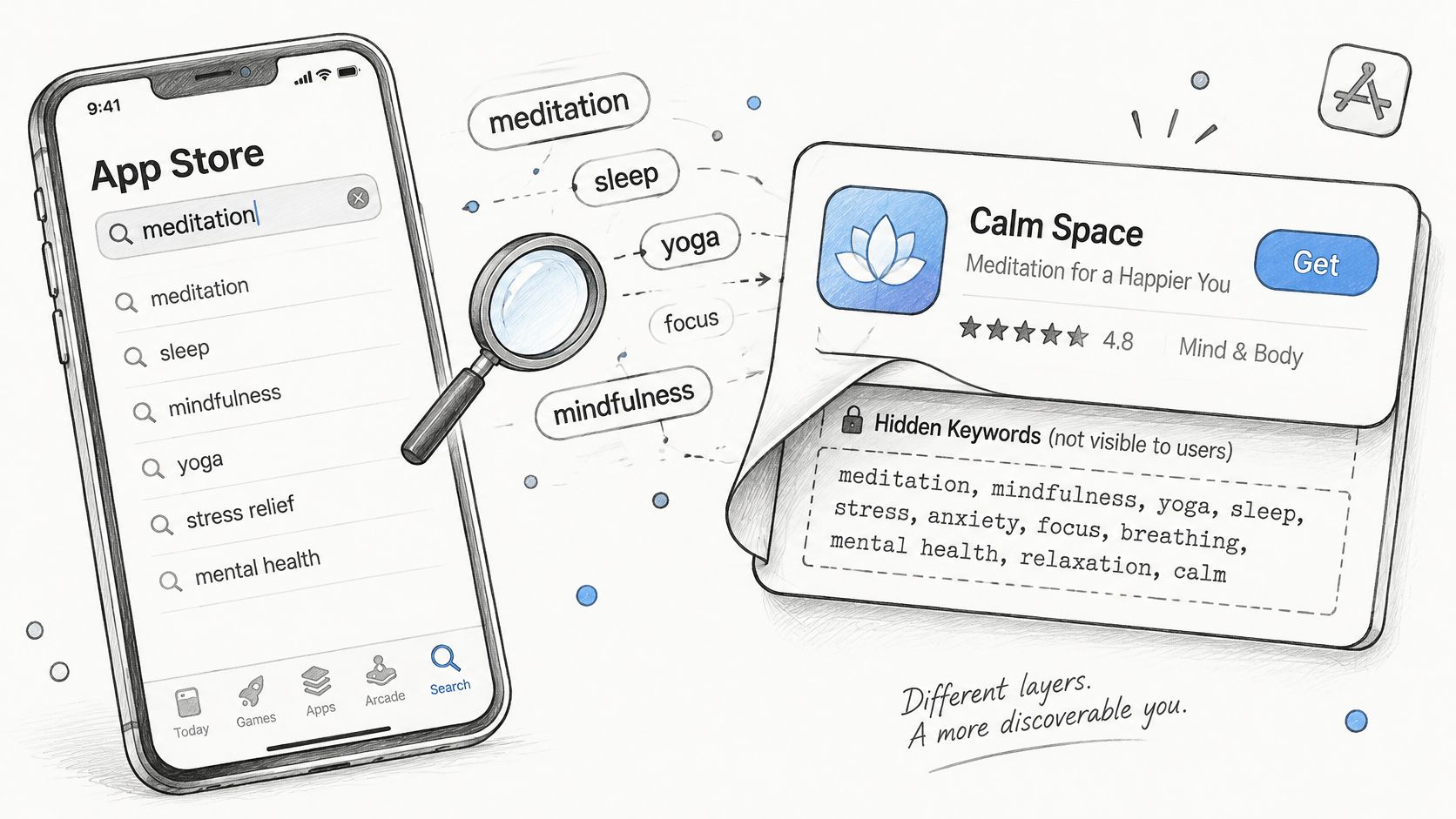
A shopper types "expense tracker" into App Store search. She never sees your keyword field, reads your title and subtitle, and taps the result that looks right. But the hidden field helped decide whether your app appeared in that list in the first place.
It is similar to the labels on the back of a shop shelf. Customers read the front of the box. The labels they don't see decide which shelf the product sits on.
<a id="where-the-field-fits-among-your-metadata"></a>
Where the Field Fits Among Your Metadata
Your listing has several text fields, and they don't all do the same job. The app name, subtitle, and keyword field feed search. Promotional text and the description sell the app to people who've already found it.
| Field | Limit | Used for search | Best use |
|---|---|---|---|
| App name | 30 characters | Yes | Brand plus your core category term |
| Subtitle | 30 characters | Yes | Main value proposition in plain words |
| Keyword field | 100 bytes | Yes | Comma-separated search terms not already in the name or subtitle |
| Promotional text | 170 characters | No | Campaign and seasonal messages |
| Description | 4,000 characters | No | Features, proof and reasons to install |
That split matters for timing, too. If you're planning a launch date, it helps to understand how long App Store submission takes so keyword work doesn't become a last-minute guess.
Practical rule: Put readable, high-value phrases where shoppers see them. Put the extra search terms they type, but would look clumsy on the page, in the keyword field.
The keyword field is set separately for each localized app listing, so every language or country version of your listing holds its own list. You're not writing one global list. You're writing one list per market you care about.
<a id="keyword-field-rules-apple-enforces"></a>
Keyword Field Rules Apple Enforces
The ceiling comes first. According to Apple's App Store Connect documentation, developers can provide up to 100 bytes of keyword content for each localized app listing, keywords must be separated by commas, and each keyword must contain more than two characters.
Bytes aren't the same as the characters you see on screen. Basic Latin letters take one byte each, while accented letters and emoji take more. The same word can cost more in French or German than it does in English, so a list that fits in one locale can overflow in another.
<a id="the-rules-in-one-place"></a>
The Rules in One Place
| Rule | Requirement | Example |
|---|---|---|
| Total capacity | 100 bytes per localization | Latin letters use 1 byte each; accented letters use more |
| Separator | Commas with no spaces | budget,expense,invoice |
| Minimum term length | More than two characters | Use tax; avoid ai |
| Multiword phrase | Inner spaces allowed | real estate |
| Words in app name | Do not repeat | App name Budget Pal, leave budget out of the field |
| Plurals | Usually unnecessary | Use tracker, not trackers |
| Filler words | Remove | the, to, and |
| Prohibited terms | Never use | Competitor names, trademarks, celebrity names |
Work through a quick example. Say your app is called Budget Pal and your draft field reads "budget, expense tracker, invoices, the money app." The word budget repeats your name, the space after the first comma wastes a byte, invoices can usually drop to its singular form, and the adds nothing. A tighter version, "expense tracker,invoice,receipt,spending," covers more distinct ideas in fewer bytes.
The field is also required, and it can be localized for different countries or regions. Apple advises against duplicating words already in your app name or company name, since shoppers can already find you through those fields. Competitor app or company names are prohibited, and breaking the keyword rules is a common reason for rejection.
Before you save, count the bytes of the finished string, not the characters. That's the number Apple enforces.
<a id="how-to-write-and-save-your-keyword-field-step-by-step"></a>
How to Write and Save Your Keyword Field Step by Step
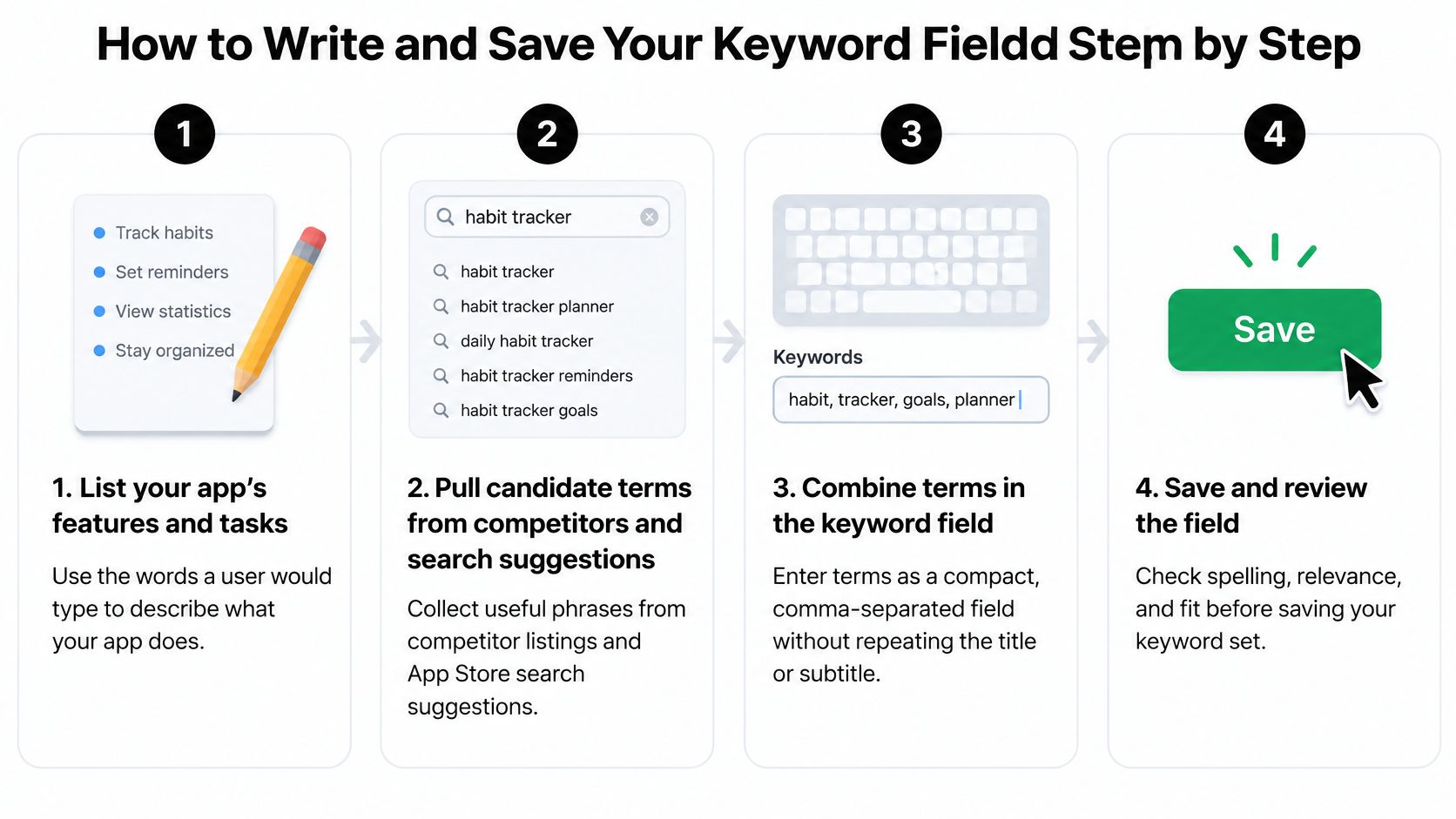
The process below turns a blank box into a defensible first list. It won't be perfect, and it doesn't need to be. It needs to be relevant, within the limit, and recorded so you can improve it later.
<a id="the-eight-steps"></a>
The Eight Steps
- List features and tasks. Write down what your app does in the words a user would type, such as "scan receipt" rather than "document ingestion." User language beats internal feature names every time.
- Pull candidate terms. Read competitor listings, type partial queries into App Store search to see suggestions, and skim your reviews for phrases users repeat. You're collecting raw material, not deciding yet.
- Remove name and subtitle words. Delete anything already in your app name or subtitle, because search already matches those fields. Every repeat you cut frees bytes for a term that adds new coverage.
- Cut generic words. Remove app, game, and free used on their own. They describe almost everything in the store and tell search almost nothing about your specific app.
- Rank by task match. Sort what's left by how closely each term matches a real job your app performs. A term you'd be proud to rank for goes above one that's merely adjacent.
- Join the string. Connect terms with commas and no spaces, keeping phrases like "real estate" intact with their inner space. Read it once for typos, because a misspelled term only matches misspelled searches.
- Count bytes, then trim. Run the full string through a byte counter, not a character counter. If you're over 100, cut the lowest-ranked term first so your best terms never get truncated.
- Paste, save, and date it. Put the string into the keyword field for the target locale, save, and note the date and the exact string in a document you control. That record is what makes later comparisons meaningful.
This walkthrough shows the field in context before you commit your own list.
<iframe width="100%" style="aspect-ratio: 16 / 9;" src="https://www.youtube.com/embed/eRXMJHdCPY4" frameborder="0" allow="autoplay; encrypted-media" allowfullscreen></iframe>If you'd rather hand the whole submission over, an App Store submission service can prepare the listing for you. With our process, the app listings stay in the customer's own developer accounts, and the accounts and code remain the customer's, so you keep control of every field, including this one.
<a id="choosing-terms-searchers-actually-type"></a>
Choosing Terms Searchers Actually Type
Selection starts with how your audience searches, not how you'd describe the product in a pitch deck. Apple's App Store search guidance recommends choosing words that reflect how the intended audience searches, favoring specific descriptions of features and functionality, all within the 100-byte limit for the keyword field, counted in bytes rather than visible characters.
That guidance also names the waste. Duplicate words, unnecessary plurals, broad category terms such as "app" or "game", filler words such as "the" and "to", and special characters that add no search value all spend capacity for nothing. Irrelevant terms, unauthorized trademarks, celebrity names, and competing app names do worse than waste space. They risk rejection.
<a id="broad-terms-versus-narrow-terms"></a>
Broad Terms Versus Narrow Terms
Popular terms can attract more searches but face stronger ranking competition, whereas narrower terms generally bring less traffic but may be less competitive. That trade-off is the core decision in this field, and it's really a routing decision: each term you keep should lead a real searcher somewhere specific.
Take a recipe app. Meal planner is popular, heavily contested, and vague about who it's for. Keto meal plan draws fewer searches, but the person typing it knows exactly what she wants, and fewer apps compete for her tap. Neither term is wrong. They do different jobs, and the narrow one points to a landing page that already matches the searcher's intent.
I would mix one or two broad terms with several specific ones, so the field covers both general discovery and clear intent.
Audience specificity works the same way outside cooking. Parents don't search for "education app" and stop there. They narrow by age and subject, which is why a curated guide that helps families find English apps for ages 5–10 reflects how those searches get phrased. Write your terms at that level of detail, and keep the ones you could route to dedicated creative later.
Test changes one set at a time. Swap a few terms, wait for the next data window, then compare impressions and installs before changing anything else. Rewrite the whole field every week and you'll never know which change moved the numbers.
The best term in your field is one a real user would type to solve the exact problem your app solves. If you can't picture that person typing it, cut it.
<a id="localizing-keywords-for-each-market"></a>
Localizing Keywords for Each Market
Copy your English list into every locale and you'll rank for searches nobody makes. Each localization has its own keyword field, so a Spanish listing can carry native Spanish terms, and Mexico and Spain don't have to share the same list.
<a id="same-product-different-search-words"></a>
Same Product, Different Search Words
A US listing for a running app might target sneakers, while the UK listing targets trainers. Neither is a translation of the other. Both are what local shoppers type.
Banking shows the same gap. One Spanish-speaking market might search cuenta bancaria, while another uses a shorter everyday phrase for the same account. Spelling variants add another layer, such as color in the US and colour in the UK, and in some markets users type local words in Latin letters rather than the local script. Word-for-word translation misses all of this because it translates your vocabulary, not their search behavior.
Bytes tighten the problem further. Accented characters raise the byte count, so a German or Spanish list reaches the limit sooner than an English one of the same visible length. A translated string that looks shorter on screen can still be the one that overflows.
<a id="a-workflow-that-holds-up"></a>
A Workflow That Holds Up
Start with your top three markets by revenue, not every locale Apple offers. Work with a native speaker to write terms from scratch for each one, based on local phrasing rather than your English draft. Then count bytes for each field separately before saving.
Localize the app name and subtitle alongside the keyword field, since those fields feed search too. A perfectly local keyword list under an English subtitle leaves coverage on the table. Review results per locale after about two weeks, and judge each market on its own numbers rather than a blended total.
<a id="custom-product-pages-and-routing-searches"></a>
Custom Product Pages and Routing Searches
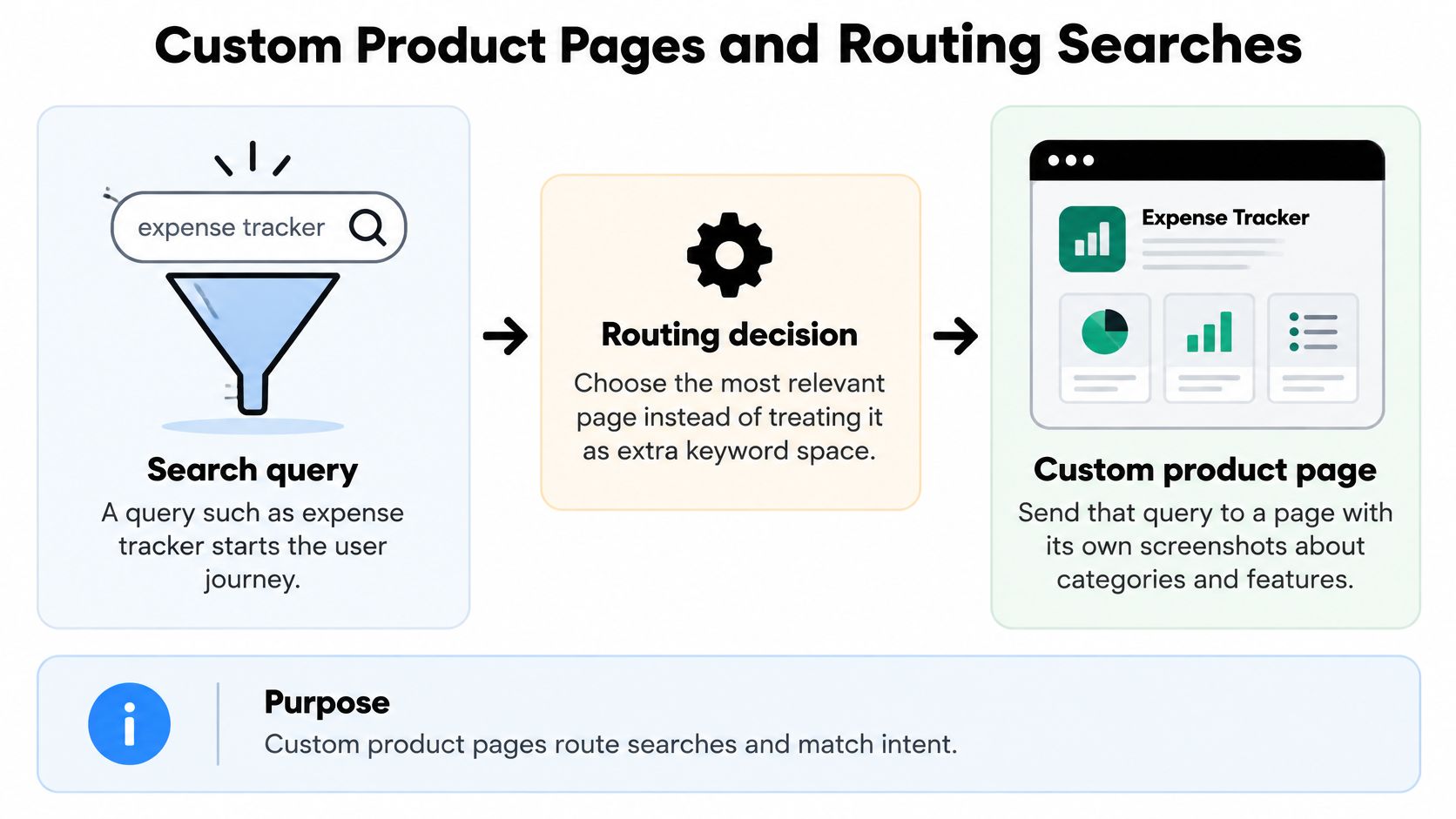
A custom product page lets a specific search land on a version of your listing built for that search. That makes it a routing tool. It isn't extra keyword space, and treating it as overflow storage for terms that didn't fit misses the point.
<a id="one-intent-one-page"></a>
One Intent, One Page
Say you ship a budgeting app. Someone searching expense tracker wants categories, budgets, and spending summaries, so that query should land on screenshots showing exactly that. Someone searching invoice scanner wants to see a bill being captured and filed, which is a different screenshot sequence telling a different story.
The mapping is simple to state and easy to get wrong. Pick one search intent, build a page that answers it in the first screenshots, assign the matching keyword set, and keep that page focused on that single job. A page trying to answer three intents reads like your default listing with extra maintenance.
Creative carries the intent once the shopper arrives. Screenshots come first, and short video can reinforce them, so it is worth testing 15-second teasers for your next launch when a page targets a visual, task-based query. The keyword field itself doesn't change. The page and its creative do the persuading.
<a id="when-a-page-earns-its-place"></a>
When a Page Earns Its Place
A custom page should exist only when a distinct intent has enough searches to measure.
That rule protects you from the common failure mode. Many thin pages split traffic so finely that no single page gathers enough data to judge, and you end up maintaining pages you can't evaluate. Set a minimum traffic threshold before creating a page, start with two or three pages for your highest-volume intents, and validate each one per locale before expanding.
Monitoring doesn't have to be manual. The App Store Connect API search keywords endpoint exposes search-keyword resources by app, locale, and platform, with up to 200 resources returned per request. That makes systematic checks practical instead of spreadsheet archaeology, and it's the data that tells you which intents deserve a page of their own.
<a id="fix-common-mistakes-and-submit-your-keyword-field"></a>
Fix Common Mistakes and Submit Your Keyword Field
The most expensive mistake is also the most common. Repeating words already in your app name or subtitle spends your scarcest resource, bytes, on coverage you already have. Every repeated word is a new term you didn't include.
Broad words come next. App or game used alone puts you in line behind the largest brands in the store while saying nothing about your task. Then there's the translation trap, where an English list pasted into German or Spanish misses local phrasing entirely, followed by plurals on every term and spaces after commas taxing each separator.
| Mistake | What it costs | Fix |
|---|---|---|
| Repeating words from the app name | Bytes spent on terms already indexed | Replace with new feature terms |
| Using app or game alone | Broad terms with heavy competition | Use the specific task the app solves |
| Translating the English list word for word | Misses local search phrasing | Research terms per locale with a native speaker |
| Adding plurals to every term | Duplicate coverage using bytes | Keep one singular form |
| Spaces after commas | Wasted bytes on every separator | Join terms with commas only |
| Competitor or celebrity names | Risk of rejection | Remove and use category or feature terms |
| Promotional text used as keywords | No effect on search ranking | Move the terms into the keyword field |
| Ignoring byte counts for accented terms | Last term silently cut | Count bytes before saving |
Two quieter errors deserve attention. Treating promotional text as a keyword substitute does nothing, because that field has no effect on search ranking. Skipping byte counts for accented terms is worse, since the field can cut your last keyword without any visible warning while you're typing.
If a keyword problem has already triggered a rejection, App Store rejection help covers how to respond and resubmit. Fix the field itself first, though. Reviewers respond better to a corrected listing than to an argument.
<a id="the-five-item-checklist"></a>
The Five Item Checklist
Run this after every change, not just the first draft.
- No duplicated words: Nothing in the field repeats a word from your app name or subtitle.
- Singular forms only: Plurals appear only where the plural is how people search.
- No borrowed names: Competitor, trademark, and celebrity names are all out.
- Byte count confirmed: The full string sits under 100 bytes in every locale.
- Locale check done: Each market's field uses native phrasing, not translated English.
<a id="your-submission-routine"></a>
Your Submission Routine
Audit your current field against the rules and the table above. Localize your top three markets properly rather than spreading thin effort across every locale. Then schedule a review in four weeks to compare impressions and installs against the version you replaced.
That review date matters more than the first draft. Your opening list is a hypothesis built from suggestions, reviews, and judgment. The second list, written with real search data behind it, is where the field starts earning its space.
Decide whether you'll run this loop yourself. It isn't difficult work, but it is recurring work, and it competes with building the product. If you hand it off, ask who writes the keywords, whether each locale gets its own researched field, and who owns the accounts.
Our answers are straightforward. The client must own and control their Apple Developer and Google Play Console accounts and grant LetsDeployIt the access needed to submit, so account ownership never moves. And the price includes store listing copy and ASO, screenshots in every device size, and app icon, splash, and adaptive icons, so keyword work sits inside the listing package rather than arriving as an extra.
Whichever route you choose, submit a field you'd be willing to defend term by term. If a word is in there, you should be able to name the searcher who types it and the task she's trying to finish.
If you'd rather spend your time on the product than on byte counts and locale-by-locale keyword fields, we can prepare your full App Store and Google Play listings, including keyword research, listing copy, and screenshots, and handle submission in your own developer accounts. Visit LetsDeployIt to share your app and get a concrete plan for getting it live.