App Store Rejection: Common Reasons and How to Fix Them
Understand app store rejection causes on Apple and Google Play, decode reviewer messages, write a clear reply, and resubmit your app faster.

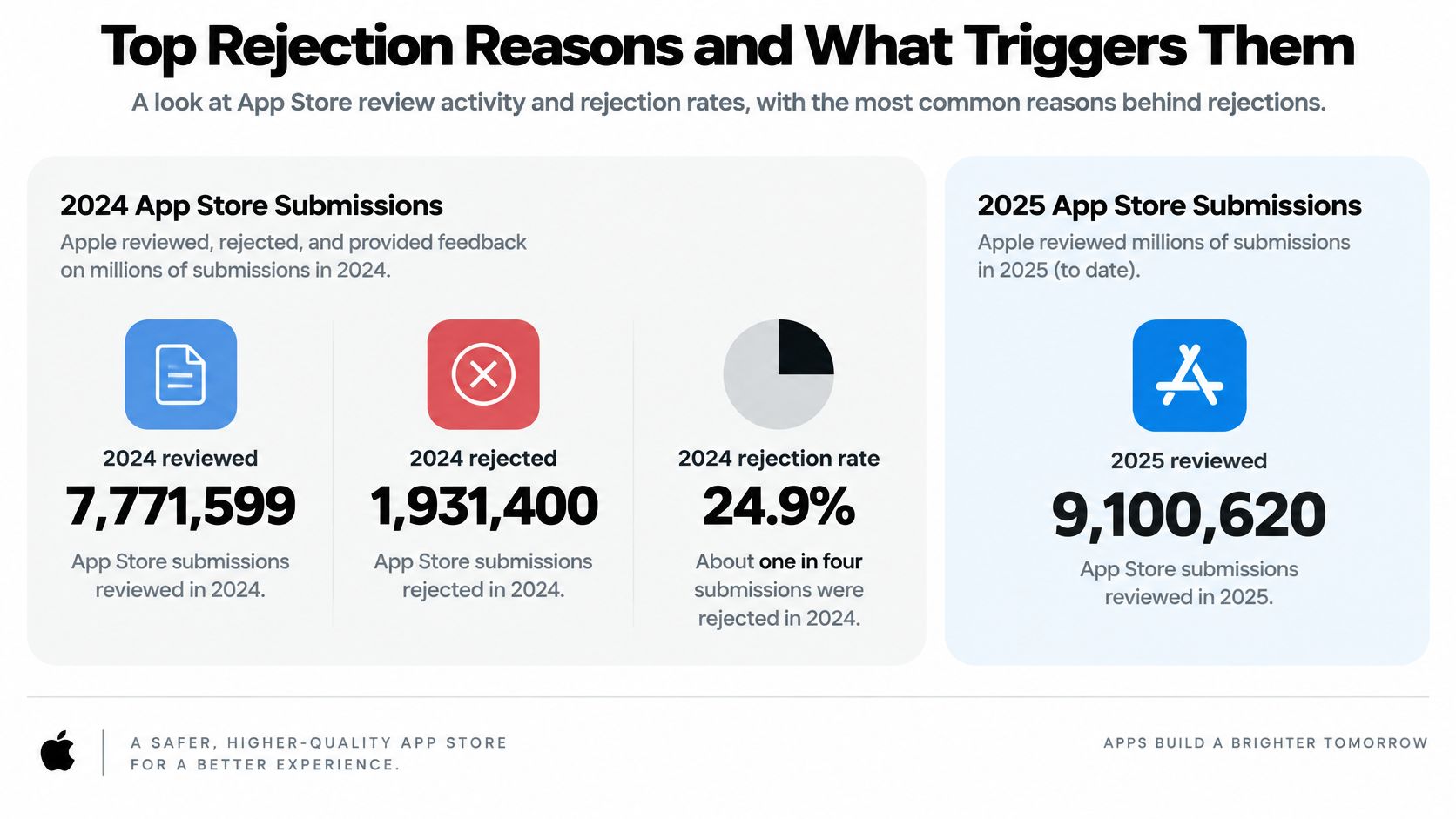
An app store rejection is a diagnosis problem more often than a verdict on the idea. Apple's 2024 App Store Transparency Report shows Apple reviewed 7,771,599 submissions that year and rejected 1,931,400, about 24.9%, roughly one in four. The same report says 295,109 rejected submissions were later approved after developers fixed what review flagged. That second figure is the one to keep. The message is a worksheet. Match the guideline it quotes to the build, the metadata, or the account setup that caused it, then change that thing. Resubmitting an unchanged binary and hoping for a kinder reviewer doesn't clear the quote.
Table of Contents
- Top Rejection Reasons and What Triggers Them
- Prepare Completeness and Metadata Before Submitting
- Respond, Fix or Appeal After a Rejection
- Google Play Rejections and the 14-Day Closed Test
- Decide Whether to Fix It Yourself or Hand It Off
<a id="top-rejection-reasons-and-what-triggers-them"></a>
Top Rejection Reasons and What Triggers Them
App Store rejections are grouped by guideline category, but a category is only a starting point. Read the exact guideline quoted in the message, then locate the cause in the build, metadata, or account setup. A single submission can violate multiple guidelines, so the category totals for 2024 add up to more than the number of rejected submissions.
Use the category as a diagnostic starting point, not as a reason to redesign the app. Match the reviewer's wording to the likely cause, then check the relevant part of the release.
| Category | Submissions in 2024 | Typical trigger | Where to start |
|---|---|---|---|
| Performance | 1,235,471 | Crashes, bugs, placeholder content, broken links | Test the exact release build on a clean device |
| Legal | 445,696 | Missing privacy policy, account deletion or data disclosures | Check privacy labels and in-app deletion flow |
| Design | 378,300 | Unclear screenshots, misleading previews, broken UI | Compare each screenshot with a real screen |
| Business | 209,845 | Unclear subscriptions, paywalls or payment terms | Reconcile pricing across description, paywall and reviewer notes |
| Safety | 116,105 | Objectionable, unsafe or user-generated content without moderation | Review content rules and moderation tools |
| Other | 23,659 | Issues outside the main categories | Read the full guideline quoted in the message |
<a id="read-the-row-that-matches-the-quote"></a>
Read the row that matches the quote
Performance covers issues that stop the reviewer from using the app as submitted, such as a crash, unfinished screen, or dead link. Reproduce the reported problem in the release build before changing assets or code elsewhere.
A Legal notice may point to inconsistent privacy labels or a missing account deletion path. Check the in-app flow and the disclosures that describe data handling. Design concerns can arise when screenshots or previews misrepresent the interface, or when the interface itself is broken. Compare each listing image with the screen it claims to show.
Business issues call for a close check of how the app charges users. If the rejection concerns subscriptions or paywall terms, compare the price, renewal language, and purchase screen with app revenue strategies from Creem. The listing and the experience a reviewer reaches should describe the same offer. Safety points to content concerns or missing moderation. For Other, use the full guideline cited in the message rather than assigning the problem to a nearby category based on its label.
Practical rule: If the message names two guidelines, address both before the next upload. Fixing only the first leaves the second reason for rejection unresolved.
Keep the diagnosis tied to the quoted guideline. For example, a Guideline 2.1 notice calls for identifying what prevents review from being completed, then correcting that issue in the build or submission materials. See what to fix when Guideline 2.1 rejects the build for a focused troubleshooting guide. If the app cannot be used because of a crash or a login barrier, start there; other issues may be easier to assess once the reviewer can reach the relevant screens.
<a id="prepare-completeness-and-metadata-before-submitting"></a>
Prepare Completeness and Metadata Before Submitting
Apple's guidance on common rejections treats Guideline 2.1, App Completeness, as one of the most common reasons submissions stay stuck. Crashes, placeholder content, incomplete information, and broken links sit in that pile. A strong concept still fails if the production build is unstable or the reviewer cannot get in.
Run the pre-flight as a diagnosis, not a visual pass. Name the sentence review would quote, then match it to the binary, the listing field, or the account setup that would make that sentence true. Change that match before the first upload.
<a id="what-a-reviewer-hits-first"></a>
What a reviewer hits first
Test the exact release candidate. A debug build that works on your phone is a different artifact.
Start cold. Install on a device with no leftover session, launch, and walk the main path. Then hunt placeholders: lorem ipsum, "coming soon," empty lists, and buttons that do nothing. Open support and privacy URLs from the listing and from inside the app. A 404 is an incomplete submission. Keep the API up for the whole review window. A 500 on the home feed reads as an unfinished product.
<a id="metadata-in-a-fixed-order"></a>
Metadata in a fixed order
Apple's App Review Guidelines require descriptions, screenshots, previews, and privacy information to reflect the core experience. If the business model or in-app purchases are unclear, that ambiguity can delay review or trigger rejection. Names are limited to 30 characters. Stuffing the name or keywords with trademarks, popular app names, prices, or irrelevant phrases is banned.
Inventory every user-facing capability in the production build first. Make the first screenshots show the primary value, not a setting nobody can reach. Then reconcile subscription, login, payment, and account-deletion disclosures across the description, screenshots, paywall, privacy policy, and reviewer notes. Account deletion is a frequent legal miss, and the concrete checks are in how to fix an account-deletion rejection.
<a id="claims-permissions-and-notes"></a>
Claims, permissions, and notes
Every material store claim should point to a reachable screen in the binary you submit. On a clean device, start with tracking, location, camera, microphone, photo library, and notifications denied. Each prompt should fire only when its feature is used. A permission with no clear job, or a paywall the screenshots never mention, can fail the submission even when nothing crashes.
Reviewer notes need a working demo login, steps for any paid feature, and a short explanation of unusual behavior. I would write them as if the reviewer has ten minutes and none of your last build's context. An expired password wastes the cycle you just spent on the binary.
<a id="respond-fix-or-appeal-after-a-rejection"></a>
Respond, Fix or Appeal After a Rejection
The reply is part of the fix. A note that repeats the original claim fails again. So does a change that lives only in the description while the binary is the same file review already saw.
<a id="six-moves-before-you-type"></a>
Six moves before you type
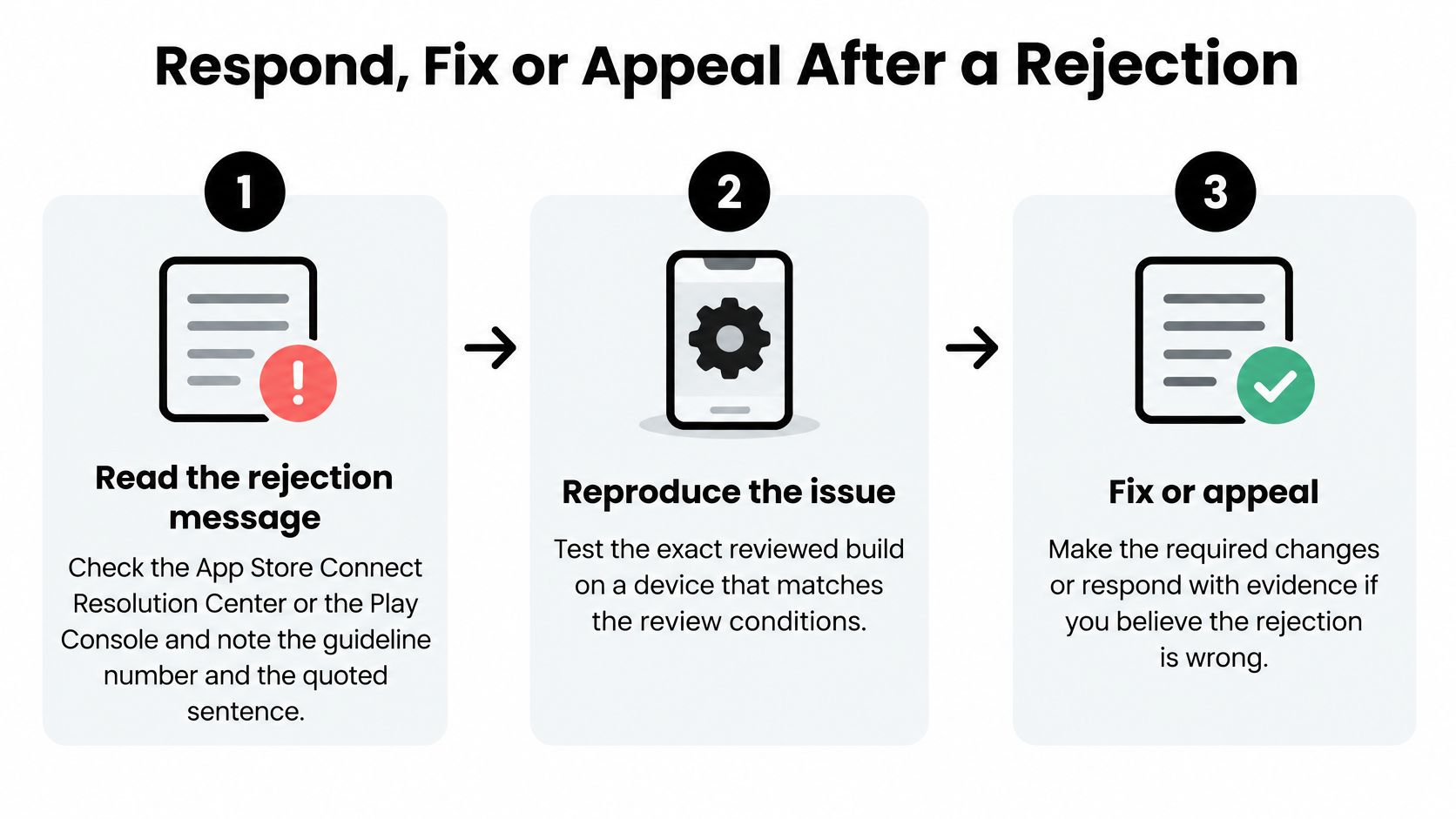
- Read the message. In App Store Connect's Resolution Center, or in the Play Console, copy the guideline number and the quoted sentence. Don't paraphrase it from memory.
- Reproduce it. Install the exact reviewed build on a clean device and follow the path a reviewer would take, including a denied-permission start if the note mentions access.
- Name the cause. Call it a code bug, missing content, a metadata claim, a permission prompt, or a business-model ambiguity. One cause. Not a rewrite of the product.
- Fix the smallest scope. Unrelated edits can create a new rejection while the old quote is still true.
- Retest the release candidate. Write down the device, the OS, and the steps you checked. That list becomes the reply.
- Pick the response from the table. Don't appeal a crash. Don't answer a missing licence with a paragraph.
| Situation | Best response | Include in the reply |
|---|---|---|
| Real crash or missing content | Fix and resubmit | Build number and the crash log that was resolved |
| Feature hidden behind login | Reply with access details | Demo account, test steps and a short screen recording |
| Ambiguous business model | Ask a specific question | The exact screen where the purchase appears |
| Restricted category without licence | Obtain the licence first | Licence document, not an appeal |
| Repeated rejection under the same guideline | Escalate to App Review Board appeal | Timeline of replies and proof of the change |
<a id="how-the-reply-should-read"></a>
How the reply should read
Thank the reviewer in one line. State the change in one line. Name the screen or the step to test. Ask for approval. Then increase the build number and upload.
Say the paywall hid Restore. "Thanks for the note. Restore Purchases was below the fold on the paywall. In build 1.0.4 it sits on the subscription screen, under the price, and it restores on a fresh install with the same Apple ID. Please try Settings, then Subscription, then Restore. We'd like this build approved."
If the rule itself is unclear, ask without arguing. "On the screen titled Plans, the monthly price and the restore control both use in-app purchase. Which purchase rule should we treat as unmet on that screen?" You named what they saw. You didn't claim they were wrong.
Appeals rarely succeed when the reply argues instead of showing evidence. Don't blame the reviewer.
A repeated rejection under the same guideline, after you can show the cited issue is gone, is when an App Review Board appeal makes sense. Attach the timeline of replies and the build where the change landed. If you still lack a licence for a restricted category, the appeal wastes the queue. Get the document, then resubmit with the file attached.
<a id="what-fails-the-second-pass"></a>
What fails the second pass
Screenshot copy that changed while the binary still crashes. A demo password that expired overnight. A privacy URL that 404s. A paragraph about a competitor who "ships the same paywall." Each of those tells review the diagnosis was wrong.
Play Console rejections follow the same shape even when the wording differs. Read the quoted policy, reproduce it on the reviewed artifact, and answer in the thread with the version code you want rechecked. I would resubmit the same day only when the retest makes the quoted sentence false. If you can't reproduce the issue, say which device you used and which step you tried, and ask which step failed. A new binary with no explanation looks like you ignored the note.
<a id="google-play-rejections-and-the-14-day-closed-test"></a>
Google Play Rejections and the 14-Day Closed Test
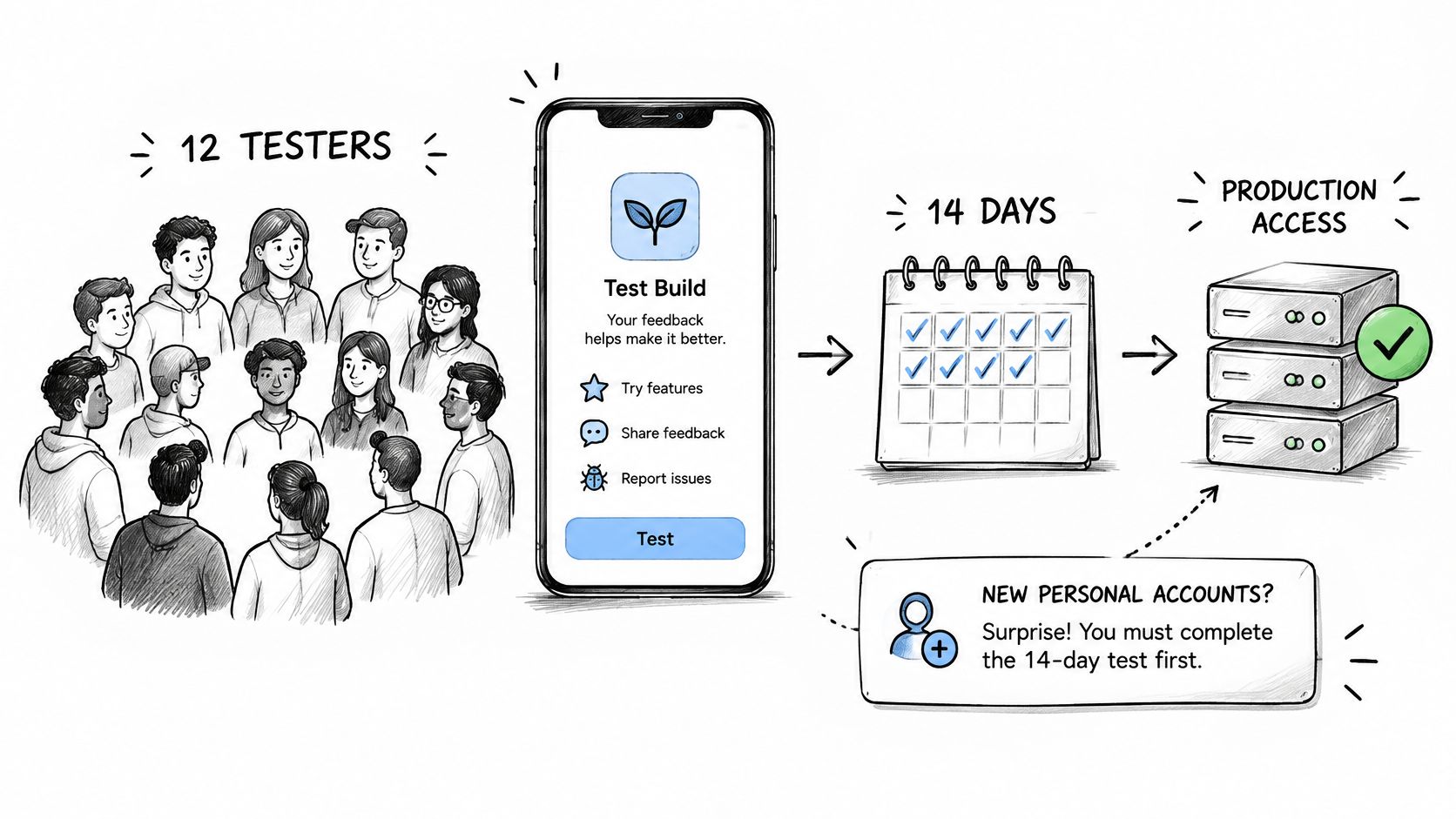
An Apple approval doesn't open Play production. A successful internal Android build doesn't either. For a newly created personal developer account, Google's closed testing requirements require at least 12 testers opted in continuously for 14 days before you can request production access. The threshold changed from 20 testers to 12 in December 2024, so older guides are unreliable. The rule isn't “find twelve people.” It's a continuous opt-in.
<a id="how-the-window-actually-counts"></a>
How the window actually counts
Testers who leave early don't count. Opting back in restarts that tester's continuous period. Schedule the 14 days when you can check the list every day. Someone dropping on day 13 moves the production request.
Keep a simple sheet. Opt-in date, last day still opted in, and whether they used the app. Ask for onboarding friction and crash notes, not a pile of idle installs. Device mix matters more than headcount. The test is a release-readiness pass. It should expose a broken signup or a crash on a smaller screen before you request production.
Our Android closed testing add-on provides 12 testers for 14 days, managed for you, and it's only for personal Play accounts. You still need a build those testers can use. The requirement applies whatever the category is. A game and a utility sit under the same personal-account rule.
<a id="where-the-stores-dont-match"></a>
Where the stores don't match
| Item | Apple App Store | Google Play |
|---|---|---|
| Developer account fee | $99 per year | $25 one-time |
| Pre-production test for new personal accounts | Not required | 12 testers for 14 days |
| Reviewer notes | Provided in App Store Connect | Provided in the Play Console submission |
Budget the account fees in that table on their own. They aren't included in a launch service fee. Reviewer notes exist on both sides, and a note you typed in App Store Connect doesn't copy into the Play Console. Treat them as two submissions.
Before you invite anyone, watch a setup pass so the clock starts on a build you won't have to swap mid-window.
<iframe width="100%" style="aspect-ratio: 16 / 9;" src="https://www.youtube.com/embed/pUdL_WuYFYQ" frameborder="0" allow="autoplay; encrypted-media" allowfullscreen></iframe>The current personal-account steps, including what to keep as evidence of real use, are spelled out in the Google Play 12-tester requirement. Store approval or a local Android build is not a substitute for that window.
<a id="decide-whether-to-fix-it-yourself-or-hand-it-off"></a>
Decide Whether to Fix It Yourself or Hand It Off
One guideline and a clear fix is a same-day job. Reproduce it, patch the smallest surface, retest on a clean device, and resubmit. Several rejections at once, a closed-test deadline, or a restricted category is a time trade. You can still do it yourself. You'll spend the days on assets, questionnaires, and reply threads instead of the product.
At LetsDeployIt we take a working app and handle the native build, store assets, compliance, testing, and submission. Hand-written apps, custom code, and builds an agency left unfinished can go through if they build and run. Don't ask us to submit an app that violates published store policy, including a regulated category without the required licence. That rejection isn't something a reply can talk away.
Share the app link and how to reach you. We try the app and reply within two business days with how we would get it into the stores. Launch plans include fixing and resubmitting free until the app is approved. If the app meets published policies and still isn't approved, the full fee is refunded within 5 days, with no fine print. Account fees, server costs, and post-launch updates aren't included. You need to own and control the developer accounts before any outside help starts.
If the binary needs new product work rather than a store pass, a build team such as custom mobile app development services is the right first call. Submission help can't invent native behavior that isn't in the code you hand over.
If a rejection is sitting in App Store Connect or the Play Console, LetsDeployIt can take a working build through listing assets, compliance, reviewer replies, and resubmission until it's approved or the fee comes back. That is the same diagnosis you just walked, applied to both stores, including a managed closed test on new personal Play accounts when you add it. Send the app link via LetsDeployIt if you want that path instead of another unchanged resubmit.