Google Play App Signing: The Complete Developer's Guide
Learn how Google Play App Signing works, why it matters in 2026, and how to enable upload keys, app signing keys, and rotation in Play Console.


You're preparing a hotfix for an Android app when the release pipeline fails. The code is ready, the listing is yours, and the app is still live in Google Play. Then you discover that the keystore on a laptop reformatted years ago is the only copy of the signing key. Google rejects the update because the certificate doesn't match the one attached to the installed app.
That failure feels like a publishing problem, but it's really an identity problem. Android uses signing certificates to decide whether a new package is a legitimate update to an existing installation. Google Play App Signing separates the credential used to submit releases from the production key used to establish that identity, giving teams a safer way to protect update continuity.
Table of Contents
- Why Google Play App Signing Exists
- How Google Play App Signing Works
- Upload Key vs App Signing Key
- Benefits and Risks of Enrolling
- Enabling Play App Signing in Play Console
- Rotating the App Signing Key Safely
- Troubleshooting Lost Keys and Edge Cases
<a id="why-google-play-app-signing-exists"></a>
Why Google Play App Signing Exists
Android doesn't treat an update as just another file with the same package name. The operating system checks the signing identity before it accepts the new version as an update, and that identity also participates in trust decisions around the installed application. If the signing key disappears, your source code and Play Console access don't automatically restore the right to publish over the existing installation.
Before Play App Signing, developers had to protect the production signing key themselves. A keystore might sit on a build laptop, in a shared drive, or inside a CI system. Each location created a different exposure, and a lost or compromised key could become a long-term operational crisis.
Google introduced Play App Signing in September 2017, allowing developers to enroll through Play Console and let Google manage app signing keys with its security infrastructure, as described in the Google Play App Signing announcement. The key idea is simple: you continue proving that you're authorized to upload a release, while Google protects the credential that signs the production artifact delivered to users.
<a id="the-key-is-tied-to-update-continuity"></a>
The key is tied to update continuity
Think of the production signing key as the seal on your app's identity. Every release must preserve the trust relationship established by that seal. Changing the package name would create a different application rather than repair the original listing's update path.
That's why enrollment matters before an incident. With Play App Signing enabled, Google holds the app signing key and signs releases on your behalf. You keep an upload key for the submission step, so losing that upload credential doesn't necessarily mean losing the app's update path.
Practical rule: Treat the production signing identity as a business continuity asset, not merely as a build secret.
Play App Signing is now embedded in the standard Android publishing workflow alongside upload-key generation and Android App Bundle publishing. Google's current Play Console app-signing documentation also describes registering signing fingerprints with API providers and, for quantum-ready hybrid signing, registering fingerprints for three keys to support newer and older devices.
The operational lesson is direct. Enrollment reduces the chance that a reformatted laptop, departed contractor, or broken CI secret permanently freezes your listing. It doesn't remove every signing responsibility, but it moves the most consequential key into Google-managed custody.
<a id="how-google-play-app-signing-works"></a>
How Google Play App Signing Works
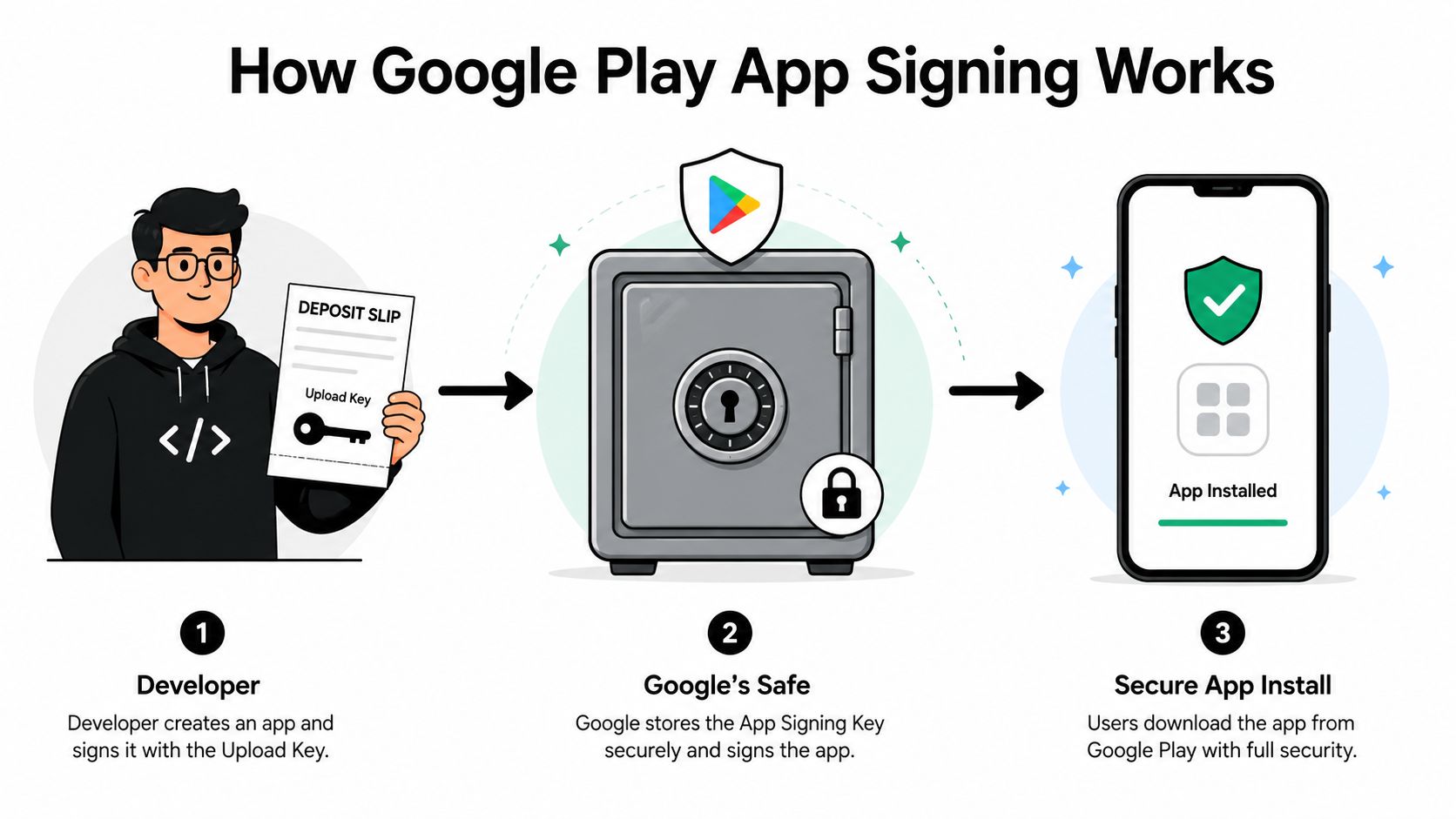
Start with a lockbox rather than cryptography. Google keeps a sealed safe containing the app signing key, and you hold a deposit slip called the upload key. You never use the deposit slip to open the safe or retrieve the production key. It proves to Google that an uploaded release came through an authorized publishing path.
The app signing key is the credential Google uses to sign the APKs generated for users, or to sign the distributable artifacts produced from your Android App Bundle. After enrollment, Google protects this key inside its security infrastructure, including hardware-backed key storage. The upload key stays under your control and authenticates the artifact you send to Play Console.
<a id="the-release-path"></a>
The release path
The normal flow has distinct handoffs:
- Build the release. Your Android project produces an Android App Bundle or APK.
- Sign the upload artifact. Your local machine or CI system signs the artifact with the upload key.
- Submit it to Google Play. Play Console checks the upload certificate against the registered upload identity.
- Google signs for distribution. Google uses the app signing key to sign the artifact served to users.
- Android verifies the install or update. The device checks the resulting signing identity and certificate lineage.
The upload key is therefore a gate credential, not the identity users ultimately trust. The app signing key is the production identity, and Google's custody keeps it away from routine developer machines.
<a id="what-enrollment-changes"></a>
What enrollment changes
For an existing app, the enrollment process can replace the developer-held production key with a Google-managed key while preserving the app's established identity. For a new app, the Play publishing setup can create or configure the app signing key as part of the release process.
This model prevents several different failures. A stolen upload key can be replaced without exposing the production key. A lost upload key can be reset after enrollment. A production signing key can be rotated through the supported Play Console process, rather than forcing every installed copy to become unrelated to future releases.
It also creates a dependency. Google becomes the custodian of the key that signs the production app, so your team must understand Play Console permissions, recovery procedures, certificate registration, and distribution requirements. Security improves when the workflow is managed deliberately, not when a team clicks enrollment without documenting what changes.
<a id="upload-key-vs-app-signing-key"></a>
Upload Key vs App Signing Key
The easiest way to avoid signing mistakes is to stop calling both credentials “the app key.” They serve different roles, have different owners, and fail differently.
| Attribute | Upload Key | App Signing Key |
|---|---|---|
| Primary role | Authenticates an artifact submitted to Google Play | Establishes the production identity users receive |
| Typical owner | Developer, agency, or CI system | Google after Play App Signing enrollment |
| What it signs | The upload package sent to Play Console | The distributable release delivered through Google Play |
| Where it lives | Your keystore, CI secret store, or secure build system | Google-managed security infrastructure after enrollment |
| Recovery | Replaceable through Play Console when the app is enrolled | Managed through Google's supported key-management and rotation flow |
| Operational scope | Publishing access | The app's update identity |
| Main failure if lost | Upload rejection until the key is replaced | Potential loss of update continuity if the app isn't enrolled |
<a id="the-upload-key-is-a-submission-credential"></a>
The upload key is a submission credential
Your upload key signs the file you send to Play. Google verifies that credential before accepting the release, then uses the app signing key for distribution. Because the upload key doesn't represent the final production identity, you can replace it after enrollment if a laptop is lost, a contractor leaves, or a CI secret is exposed.
That recoverability has a boundary. Google's guidance says a new upload key can be registered and the old one replaced when the app is already enrolled in Play App Signing. If Play App Signing was never enabled, there's no equivalent upload-key reset path for the legacy signing identity, as reflected in the Google Play support guidance on resetting an upload key.
<a id="the-app-signing-key-is-the-production-seal"></a>
The app signing key is the production seal
The app signing key signs what users install from Google Play. It's inseparable from the listing's established update identity, which is why teams should limit direct exposure to it whenever their distribution model allows.
Key rotation is supported through Play App Signing. Android's APK Signature Scheme v3 provides proof-of-rotation data, allowing supported Android versions to recognize a new signer while retaining trust in the previous signer, as documented in Google's Play platform updates covering app-signing key rotation.
Losing an upload key is a publishing incident. Losing an unprotected legacy production key can become an update-continuity incident.
That distinction should shape ownership. Store the upload key in a controlled secret manager, document its certificate fingerprints, and make sure at least one responsible team member knows how to request replacement. Don't distribute the production key casually if Google can hold it for you.
<a id="benefits-and-risks-of-enrolling"></a>
Benefits and Risks of Enrolling
Enrollment trades direct custody for a managed trust model. That trade is valuable for teams whose primary distribution channel is Google Play, but it isn't automatically correct for every Android product.
The strongest benefit is recovery. Google's managed app signing key means a lost upload key doesn't have to stop releases permanently. Enrollment also separates everyday release automation from the production identity. Your CI pipeline handles the upload credential, while Google handles the key that signs the artifact users receive.
<a id="where-enrollment-helps"></a>
Where enrollment helps
- Key recovery: You can request a replacement upload key after enrollment instead of relying on the original credential forever.
- Key rotation: Google supports app-signing key rotation, with Android certificate lineage preserving update trust across supported versions.
- Reduced exposure: The production key isn't sitting on every developer workstation or build runner.
- Release continuity: The Play listing keeps its established signing identity while your team changes its upload process.
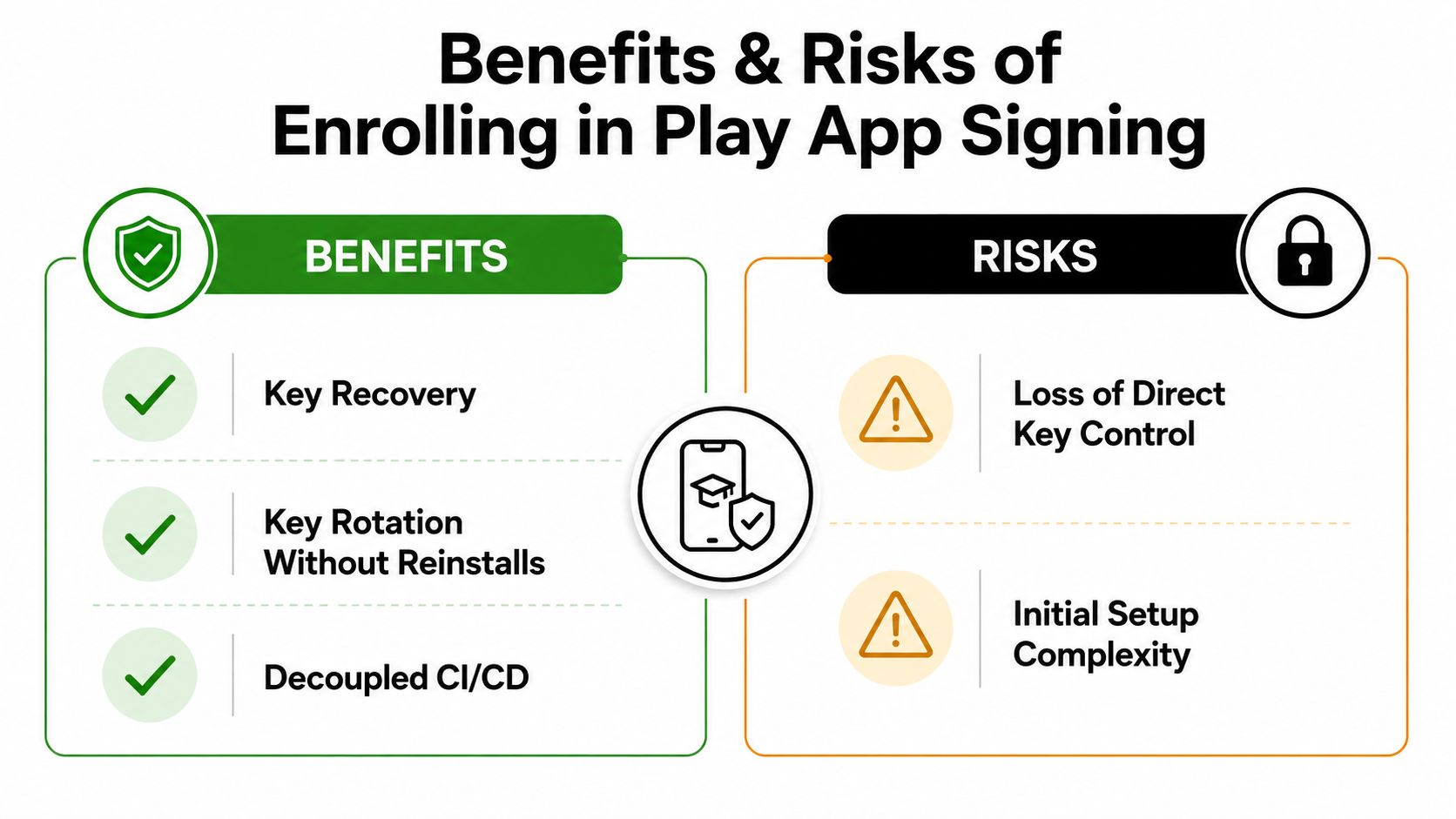
The costs are practical rather than theoretical. You're trusting Google's infrastructure and policies to protect and operate the production key. You also lose the simplicity of signing the exact same production APK independently for every distribution channel, especially if your organization relies on offline or private sideloading.
<a id="when-direct-custody-may-matter"></a>
When direct custody may matter
Enrollment deserves more scrutiny when:
- You distribute outside Play: A private APK channel may require one signing key that your organization controls directly.
- Compliance restricts custody: Internal policy may prohibit a third party from holding a production credential.
- You need independent signing: Some release models require a fully offline process that doesn't depend on Play's signing workflow.
- Your handoff process is weak: Enrollment helps with key exposure, but poor Play Console access management can still create operational risk.
Google Play App Signing is closely connected to Android App Bundles and modern Play distribution. An App Bundle defers APK generation and signing to Google Play, which fits the managed-key model. If your product's distribution is Play-first, that alignment is usually operationally useful. If your product must remain channel-neutral, document the consequences before enrolling.
<iframe width="100%" style="aspect-ratio: 16 / 9;" src="https://www.youtube.com/embed/odv_1fxt9BI" frameborder="0" allow="autoplay; encrypted-media" allowfullscreen></iframe>The right decision depends on who must sign what, where users obtain the app, and whether your policy permits Google to hold the production key. Security theater starts when teams choose enrollment without answering those questions.
<a id="enabling-play-app-signing-in-play-console"></a>
Enabling Play App Signing in Play Console
Before clicking through Play Console, identify the app's current signing certificate and decide whether you're creating a new identity or migrating an existing one. The wrong choice can create a mismatch between the certificate registered with Google services and the certificate those services expect.
<a id="start-with-a-new-app"></a>
Start with a new app
For a new application, open the app in Play Console and go to Setup, then App signing. Choose the option to create a new app signing key, generate the upload key, and keep the upload keystore in a protected location.
The failure this prevents is simple: a developer might sign early builds with an unmanaged production credential, then discover that the team has no recovery plan once the app reaches release. Establishing the roles at the beginning keeps the upload path and distribution identity separate.
Google's current guidance places Play App Signing directly in the release setup flow, alongside upload-key creation and Android App Bundle publishing. For modern Play submissions, that makes enrollment part of normal release preparation rather than a last-minute security enhancement.
<a id="migrate-an-existing-app"></a>
Migrate an existing app
For an existing app, go to Setup, open App signing, and select the Google-generated-key option when you want Google to manage the production signing key. Export the relevant certificate information from your existing keystore. A command such as keytool -list -v -keystore can help you inspect the keystore, but protect the file and password while doing so.
Play Console may require a PEPK export for the existing key. Generate that file using Google's documented tooling, upload it through the enrollment flow, save the displayed certificate fingerprints, and download deployment_certificates.zip for your records.
If you're retaining a legacy key, choose Use existing key instead. This preserves the current identity while leaving a possible upgrade path for later. The failure prevented here is an accidental identity change that breaks updates or invalidates integrations tied to the old certificate.
<a id="register-fingerprints-beyond-play"></a>
Register fingerprints beyond Play
Save the relevant upload and app-signing fingerprints in your release documentation. Google's documentation explicitly requires developers to copy and register app-signing fingerprints with API providers, and the Play Integrity documentation shows why signing configuration belongs in the broader trust and integrity workflow.
Register the correct fingerprints with Firebase, Google Maps Platform, OAuth clients, and any API provider that checks certificates. A release can pass Play Console validation and still fail at runtime if Firebase or another service only recognizes the old certificate.
Release checkpoint: Don't call enrollment complete until the fingerprints are recorded, third-party services are updated, and CI can produce an artifact signed with the registered upload key.
<a id="rotating-the-app-signing-key-safely"></a>
Rotating the App Signing Key Safely
Rotation exists for key hygiene and incident response. It lets you replace the production signing key without treating the next release as an unrelated application, but it must be planned as a certificate transition rather than a normal build setting.
Android's APK Signature Scheme v3 introduced proof-of-rotation information. That certificate lineage tells compatible devices that a new signer is authorized in relation to the previous signer. Google's platform guidance explains that Android 9 and later can recognize the rotated signer while preserving trust in the prior signer, and newer behavior uses the rotated signer on Android 13 and later while older versions use the original signer.
<a id="the-play-console-process"></a>
The Play Console process
Open Setup, choose App signing, and locate the app-signing key section. Select Request key upgrade, then choose whether to generate the new key locally or have Google generate it, depending on your requirements and the options shown for the app.
If you generate it locally, protect the new keystore with the same care as any production credential. Upload the requested key material, review the old and new certificate details, and confirm the rotation only after checking your release and integration plan.
The upgrade is effectively a one-way change to the production signing identity. Existing releases remain associated with the prior signer, while future releases use the new signing arrangement. Don't delete the old keystore or old certificate records after the console accepts the upgrade. They're still important for debugging historical releases, validating lineage, and diagnosing services that haven't been updated.
<a id="test-the-transition"></a>
Test the transition
Use a test track or controlled release before treating the rotation as complete. Install an older build, apply the new release, and verify that the device accepts it as an update. Then inspect the certificate information with:
apksigner verify --print-certs
The command helps confirm which certificates are present, but certificate inspection alone isn't enough. Check Firebase, Maps, OAuth, Play Integrity, and other providers that may use fingerprints as allowlists.
Pre-Android 9 devices that already accepted the original APK aren't retroactively changed by the rotation. The key transition affects future releases, while the established trust relationship remains part of the supported lineage behavior. That's why rotation can be safe when the new key, old key, certificate lineage, and external integrations are all documented.
<a id="troubleshooting-lost-keys-and-edge-cases"></a>
Troubleshooting Lost Keys and Edge Cases
The most dangerous assumption is that Play App Signing repairs every key problem automatically. It only provides the recovery boundary after enrollment. If the app still uses a developer-controlled legacy production key, losing that key remains a fundamental update problem.
<a id="the-app-was-never-enrolled"></a>
The app was never enrolled
If you lose the legacy signing key before enabling Play App Signing, you can't generate a replacement and upload it. A new key produces a different certificate, and Google can't treat that package as a valid update without an approved migration path.
Prepare a Play Console support request with the package ID, the known signing fingerprint, ownership details, and APK evidence that connects the app to your account. Support may determine what recovery or migration options are available, but there's no guaranteed self-service upload-key reset for an app that was never enrolled.
<a id="the-upload-key-disappeared-after-enrollment"></a>
The upload key disappeared after enrollment
This is the recovery scenario Play App Signing is designed to contain. Request an upload-key reset through Play Console, generate a new upload key, and submit the certificate in the required format. Google's guidance says the replacement process depends on the app already being enrolled, and the new release must use the registered replacement credential.
The failure to avoid is confusing the upload key with the app signing key. You don't need to recover Google's production key from the vault, and you shouldn't try to recreate it locally. Replace the credential used to authenticate uploads.
<a id="an-agency-or-contractor-owns-the-keystore"></a>
An agency or contractor owns the keystore
Agency handoffs expose gaps in ownership records. Ask for the upload keystore, its password, certificate fingerprints, CI configuration, and the exact Play Console account relationship. If the app is enrolled, the agency's upload key can be replaced through the supported reset process. If it isn't enrolled, changing developers may require a more involved support-assisted migration.
<a id="a-certificate-mismatch-appears-at-runtime"></a>
A certificate mismatch appears at runtime
A Play release can upload successfully while Firebase, Maps, OAuth, or Play Integrity rejects requests. The cause is often a provider still allowlisting the old upload or app-signing fingerprint.
Keep an offline copy of every relevant keystore, record SHA-256 fingerprints, and document which service uses each fingerprint. Google's current Play Console guidance also describes more complex fingerprint registration for hybrid signing, including separate classical and PQC-related keys for compatibility across device generations.
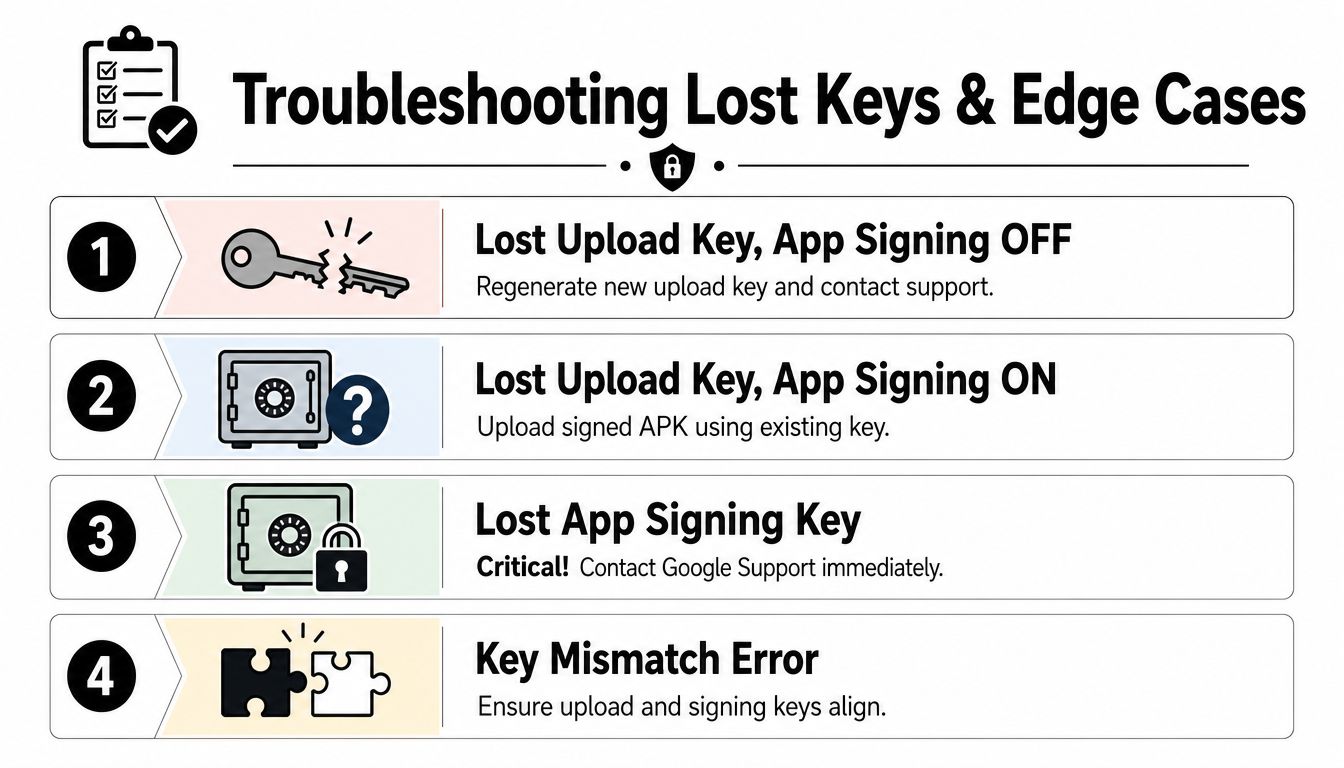
Incident checklist: Identify whether the failure involves the upload key, the app signing key, or a third-party fingerprint. Those are different recovery paths.
For teams that want help coordinating store setup, signing, and submission, LetsDeployIt handles signing configuration and end-to-end Google Play submission for React Native and Expo projects, including store assets, compliance materials, testing coordination, and resubmissions. Visit LetsDeployIt to review the deployment service and decide whether it fits your release process.