ASO in Google Play: How to Rank and Convert Better
Learn ASO in Google Play: ranking factors, keywords, assets, store listing tests and a checklist to lift installs and keep users.

Your app has been live for a few months. The icon is fine, the description got written in an afternoon, and there are two keywords in the title that made sense at the time. Installs have gone flat, and the team is now arguing about whether to rewrite the title or shoot a new video.
That argument usually hides a simpler question: which part of the funnel is broken?
Most advice answers it with a keyword list. A keyword list can't tell you whether people never saw your listing, saw it and scrolled past, or tapped Install and quit before the first session ended. Those are three different failures with three different fixes, and only one of them is a copywriting problem. Treating ASO in Google Play as a measurement discipline, rather than a list of terms to sprinkle, is what separates teams that compound installs from teams that redecorate every quarter.
Table of Contents
- What ASO Means for Your Google Play Listing
- How Google Play Decides Which Apps to Show
- How to Research and Place Keywords
- Icon, Screenshot and Video Specs to Follow
- How to Run a Store Listing Experiment
- Reading Experiment Results Beyond the Install Click
- Confirm Your Listing Before You Submit
<a id="what-aso-means-for-your-google-play-listing"></a>
What ASO Means for Your Google Play Listing
A listing can appear in search results all day and still earn few installs. Or it can convert the visitors it gets while reaching too few relevant people. ASO for Google Play means improving how the listing is found and how effectively it turns a visit into an install.
Start by separating those outcomes. Visibility measures whether the listing appears for relevant searches and browse placements. Conversion measures whether people who see the listing choose to install. A change to listing text may affect visibility; a change to the icon or screenshots may affect the install decision. Track the two separately so a weak result points to the right part of the funnel.
| Element | Indexed for search | Main job |
|---|---|---|
| Title | Yes | Signals the app's subject and makes the first impression |
| Short description | Yes | Summarizes the app's value beneath the title |
| Full description | Yes | Explains features and supports relevance with detail |
| App icon | No | Helps the app stand out in search and browse results |
| Screenshots | No | Shows the app's core experience and value |
| Feature graphic | No | Supports featured placements |
| Preview video | No | Demonstrates the app in use |
| Ratings and reviews | Ranking signal | Inform ranking and help users judge trust |
Text and creative do different work. Title and description can help Google Play match a listing to a search; the icon and visual assets help users decide whether to open the listing or install. Ratings and reviews provide another input to ranking and can shape confidence at the decision point.
Google Play sees a very large volume of downloads every year across games and non-game apps, so no listing is seen in isolation.
Practical rule: diagnose before editing. If relevant impressions are low, examine whether the listing clearly describes the app. If impressions are healthy but installs lag, review how the icon and listing visuals communicate the product. If people install but the shipped app does not match the promise, adjust the message to reflect the actual experience. A keyword change cannot fix a mismatch between the listing and the app.
<a id="how-google-play-decides-which-apps-to-show"></a>
How Google Play Decides Which Apps to Show
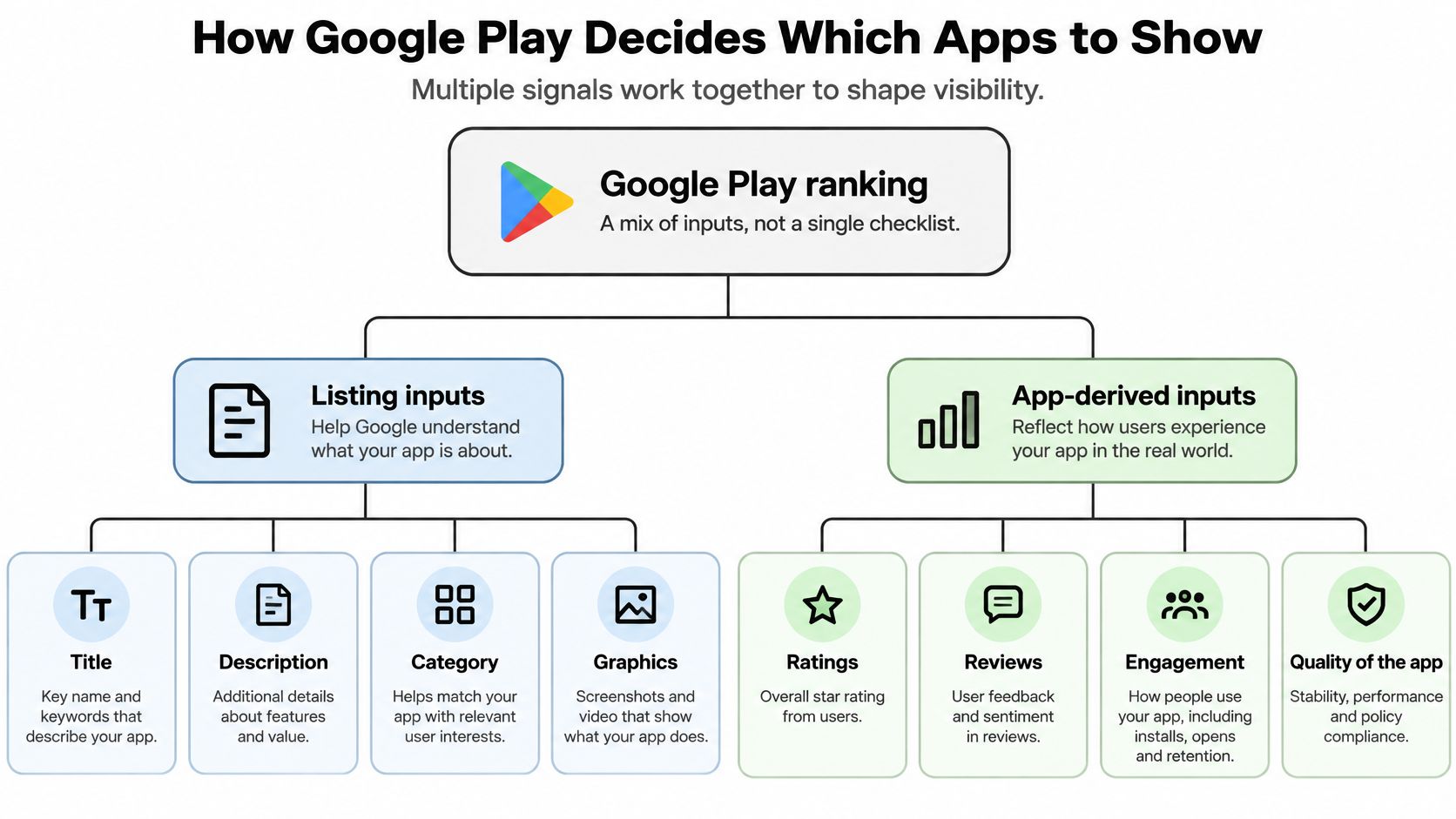
Ranking isn't a checklist you complete. It's a weighted mix of signals, and the weights move.
Google groups the inputs into two families. Listing information covers the title, description, category and graphics. App-derived characteristics cover ratings, reviews, engagement, relevance and the quality of the app experience itself. Google's own documentation on how Play ranks listings also makes clear that weighting varies by search surface, by device, and by individual user preferences. That single sentence kills most universal ranking advice: the same listing can hold position three for a branded query and be invisible for a category query like "budget tracking app".
<a id="the-two-surfaces-your-listing-competes-on"></a>
The two surfaces your listing competes on
Google Play Console separates traffic into two discovery buckets, and each one rewards different work, as the Play Console acquisition reporting guide describes.
- Google Play Search: users type your app name or a closely related brand term. This is demand you created elsewhere, and it's the easiest visibility you'll ever get.
- Google Play Explore: users arrive through home pages, recommendations, top charts, autocomplete and category searches such as "racing game". Non-branded discovery lives here, and quality signals carry the most weight.
If Search is strong and Explore is flat, your metadata is fine and your product signals aren't. If Explore outperforms Search, you have an audience but no brand recall.
<a id="a-diagnostic-order-that-saves-weeks"></a>
A diagnostic order that saves weeks
Run the questions in this order, because each answer eliminates work further down.
- Is visibility low? Check whether the terms you target match the intent of the queries you want. A listing promising "recipe collection" won't surface for "meal planner", no matter how often the word appears.
- Are impressions healthy but taps low? The problem is creative or the value statement. Time to test the icon or the first screenshot.
- Are taps healthy but opens or installs lagging? The listing promises something the shipped app doesn't deliver quickly enough.
Keywords cannot fix crashes, weak retention or a sour review profile. They only change who arrives.
Three questions worth answering this week: which surface is weak in Play Console, what exactly does my listing promise, and what do users do in the first 24 hours after install. Those three answers point to one asset change, not ten.
<a id="how-to-research-and-place-keywords"></a>
How to Research and Place Keywords
Keyword work on Play is bounded by relevance and policy, not by repetition. Google's guidance on Play search ranking and metadata explicitly factors in user relevance, app quality, technical performance, user experience, ratings, reviews and engagement. No title rewrite compensates for crashes or poor retention. Treat stability as part of discoverability, not a separate release concern.
With that constraint in mind, the process is short and unglamorous.
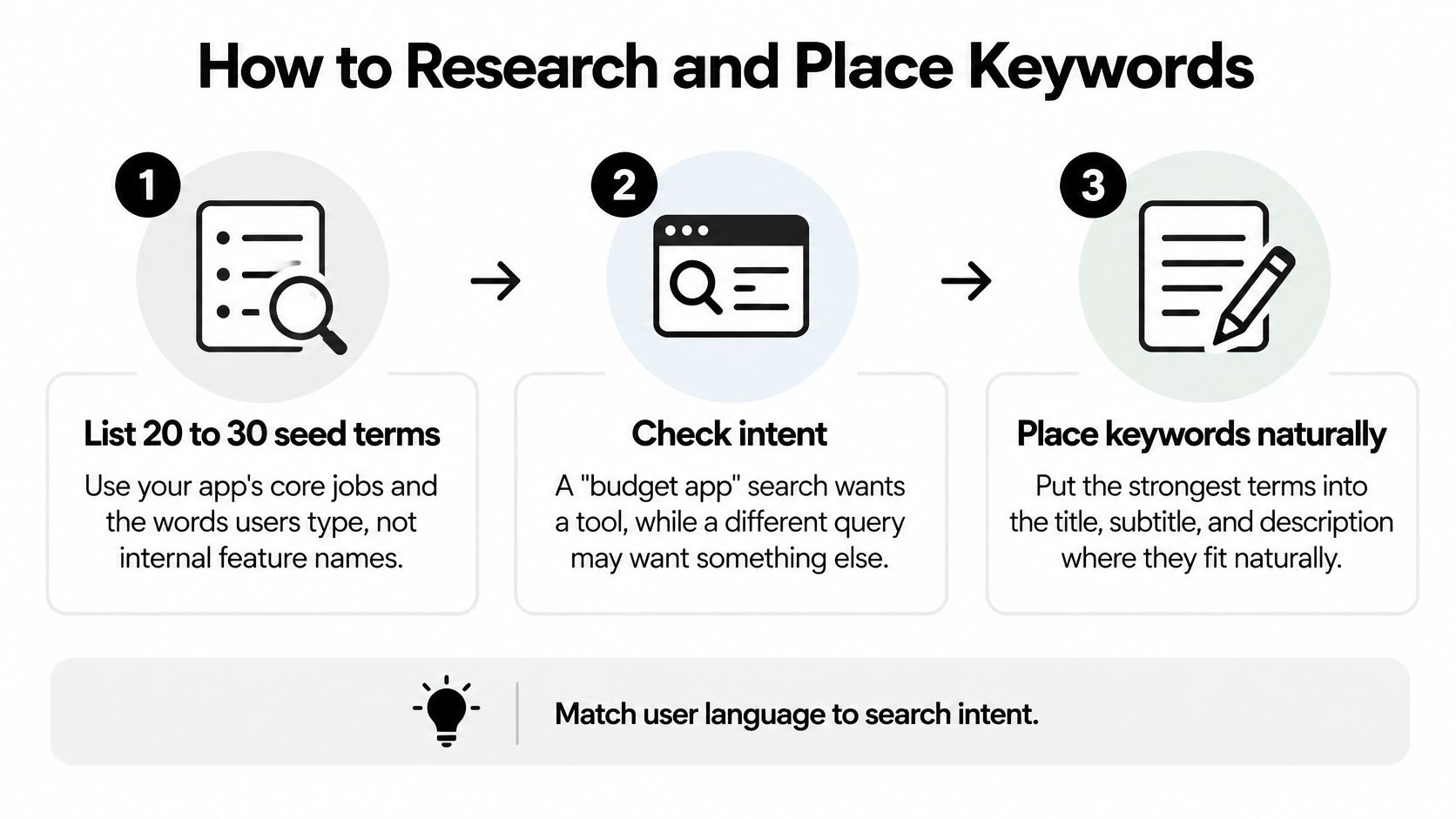
- List 20 to 30 seed terms from your app's core jobs. Use the words a user types, not your internal feature names. "Shift swap" beats "team scheduling module".
- Check each term against intent. A "budget app" search wants a tool. A "best budget app" search wants a comparison, and you're not a comparison article.
- Pick one primary keyword for the title. Keep the whole title within 30 characters and place the keyword early, since the title carries the most search weight.
- Use the short description for a second, distinct benefit. It's indexed, but its real job is conversion. Repeating the title there wastes the line.
- Work secondary terms into the full description naturally, a few times each. Vary the phrasing to cover close variants rather than repeating one phrase.
- Cross-check every claim against the shipped feature set. A promise the build can't keep converts badly later, even when it converts well today.
Before you draft anything, do the boring groundwork with a real app store keyword analysis so the terms you weave in are ones people search, not ones your team finds impressive.
<a id="the-slip-that-costs-the-most"></a>
The slip that costs the most
Stuffing the title with five keywords. It reads badly to users, gains almost nothing from the algorithm, and can look like spam to a reviewer. Relevance and quality are judged together, so a cleaner title that matches one intent beats a crowded one that gestures at four.
The test for each placement is simple. Read the title aloud. If it doesn't sound like a sentence a person would say, rewrite it. Then read the short description and check it adds a reason to tap rather than restating what the title already said.
A title is a signpost, not a billboard. One clear promise, aimed at one kind of search.
<a id="icon-screenshot-and-video-specs-to-follow"></a>
Icon, Screenshot and Video Specs to Follow
Keep this table within reach before every export, because the fastest way to delay a release is a rejected asset.
| Asset | Size and format | Count and limit |
|---|---|---|
| App icon | 512 x 512 px, 32-bit PNG with alpha, under 1 MB | 1 |
| Feature graphic | 1024 x 500 px, PNG or JPEG, no alpha channel | 1 |
| Phone screenshots | 16:9 or 9:16, JPEG or 24-bit PNG, 320 to 3840 px per side | 2 to 8 |
| 7-inch tablet screenshots | Same rules as phone screenshots | Up to 8 |
| 10-inch tablet screenshots | Same rules as phone screenshots | Up to 8 |
| Promo video | YouTube link | 1 |
Design the icon at 512 px but judge it at thumbnail size, because that's how it appears in search results. If the shape isn't readable at 48 px, the detail you added is decoration, not communication.
Screenshots carry most of the conversion weight, and the ordering matters more than the count. Lead with the first two, since a large share of visitors never scroll beyond them. Give each one a single caption that names a benefit, and keep the sequence consistent across the phone and tablet sets so the story doesn't change with the device.
For the feature graphic, keep text away from the edges and centre the critical content. The graphic gets cropped and overlaid on promotional surfaces, and a headline sitting near the border disappears. With video, put the core action in the opening seconds. Most viewers decide whether to keep watching almost immediately, and those seconds are the only ones that count.
Every asset must show the actual app. Screenshots that imply features you haven't shipped damage trust in the first session and can trip a review problem. If you want a reference for building sets that hold up across device sizes, this guide to app screenshots for the Play Store walks through the sequencing.
The check is physical, not theoretical. Export each asset, open it at phone size, and confirm the main message lands in about three seconds. If you have to squint or read a caption twice, cut something.
<a id="how-to-run-a-store-listing-experiment"></a>
How to Run a Store Listing Experiment
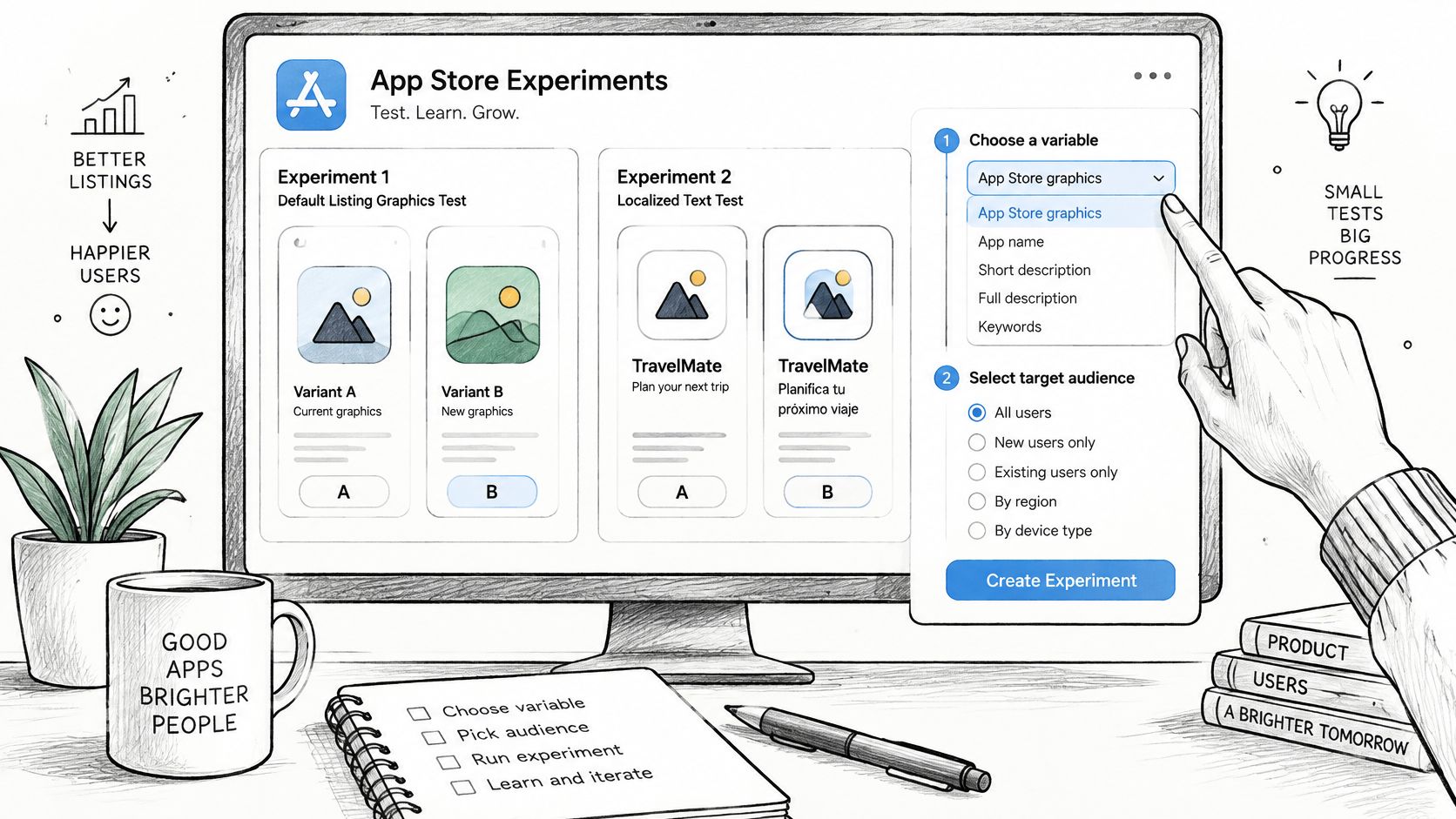
Store Listing Experiments help isolate whether a listing change improves performance. Google's Store Listing Experiments documentation describes tests for icons, feature graphics, screenshots and descriptions on default or custom listings, including localized experiments in up to five languages.
Start with the funnel problem, not a pile of keyword changes. If the listing is getting seen but few people click to install, test the creative or message. If visibility is weak, a creative experiment may not address the cause. If clicks rise but downstream results do not, check whether the listing promise matches the shipped app.
- Choose one question. Decide whether you are testing an icon, feature graphic, screenshot or description. Change one major asset or message at a time so you can connect the result to the change.
- Set the target metric. Play Console offers unique user install clicks, unique user open clicks and pre-registration clicks. Choose the metric that matches your question, and remember that a click is not the same as a completed install or an active user.
- Estimate the test requirements. Use Play Console's experiment setup and sample-size and time estimate to gauge the visitors and run time needed. A test with too little traffic can leave the result inconclusive.
- Cover a full weekly cycle. Include both weekdays and a weekend where possible, since traffic patterns can differ across those periods.
- Check segments before calling a winner. Reports break results down by traffic source, country, language and campaign. A variant that wins overall because it performs well in one country may point to a localization effect rather than a broadly stronger creative.
- Roll out a winner. A test result does not make the variant permanent by itself. Apply the winning version to the listing once the result supports the change.
Experiments can stop automatically after a period of time. Check the current experiment status in Play Console, and roll out the preferred variant rather than assuming it will remain live.
https://www.youtube.com/embed/9m6MoBM-sFI
Avoid checking the lead hourly. Early differences can shift as more visitors enter the test. When traffic is too thin to produce a useful experiment, make a controlled listing change, record the date, and compare performance afterward. Treat that comparison as directional evidence, not a clean experiment, because other changes in traffic or audience can affect the result.
<a id="reading-experiment-results-beyond-the-install-click"></a>
Reading Experiment Results Beyond the Install Click
A lift in install clicks proves stronger intent. It doesn't prove a completed download, an activated user or a retained one. Google's Play Console experiments reference notes that experiment parameter configuration and a sample-size and time calculator arrived in 2025, and that from July 2026 store-listing performance reporting moves toward intent signals such as clicks rather than successful acquisition outcomes. If the platform reports intent, your own analysis has to carry the rest of the funnel.
| Result pattern | What it suggests | Next step |
|---|---|---|
| Install-click rate up, opens flat | Intent improved but the promise may be overstated | Check that the first-open screen matches the listing |
| Visitors up, install clicks flat | Traffic arrives but the creative does not persuade | Test the icon or first screenshot |
| Installs up, one-day retention down | Listing attracts the wrong users | Rewrite the claim to match the shipped features |
| Winner in one country only | Possible language or market effect | Repeat the test per locale before rolling out |
| Rating drops after the change | Expectation gap after install | Hold the variant and read recent reviews |
<a id="the-decision-rule"></a>
The decision rule
A variant wins only when three things hold: intent improves, completed installs follow, and one-day retention and ratings don't degrade. Two out of three isn't a win, it's a trade you haven't priced yet.
Practical rule: an Install tap is a question the user is asking. If the app answers it badly in the first session, the listing just bought you a worse rating.
Separating language effects from market effects is a step teams often skip. A localized variant that wins in one country may be responding to that country's search volume or competitive set rather than the copy itself. Repeat the test per locale before rolling anything out broadly. If you need a refresher on how to separate a signal from a goal, this MyMentions guide to conversion signals is a useful frame for distinguishing what you're counting from what you're trying to achieve.
<a id="the-log-that-makes-the-next-test-cheaper"></a>
The log that makes the next test cheaper
Keep one line per experiment: hypothesis, variant, metric, sample size, result, and the funnel stage it moved. Six months of those lines tells you more about your audience than any tool dashboard. It also stops the team relitigating a question you already answered.
Overpromising is the most expensive mistake available here. A claim that lifts taps while lowering opens or retention is a net loss, because you paid for the install twice, once in acquisition and once in churn. Pair the listing analysis with proper app store download tracking so the tap and the install are visibly different numbers in your reporting.
<a id="confirm-your-listing-before-you-submit"></a>
Confirm Your Listing Before You Submit
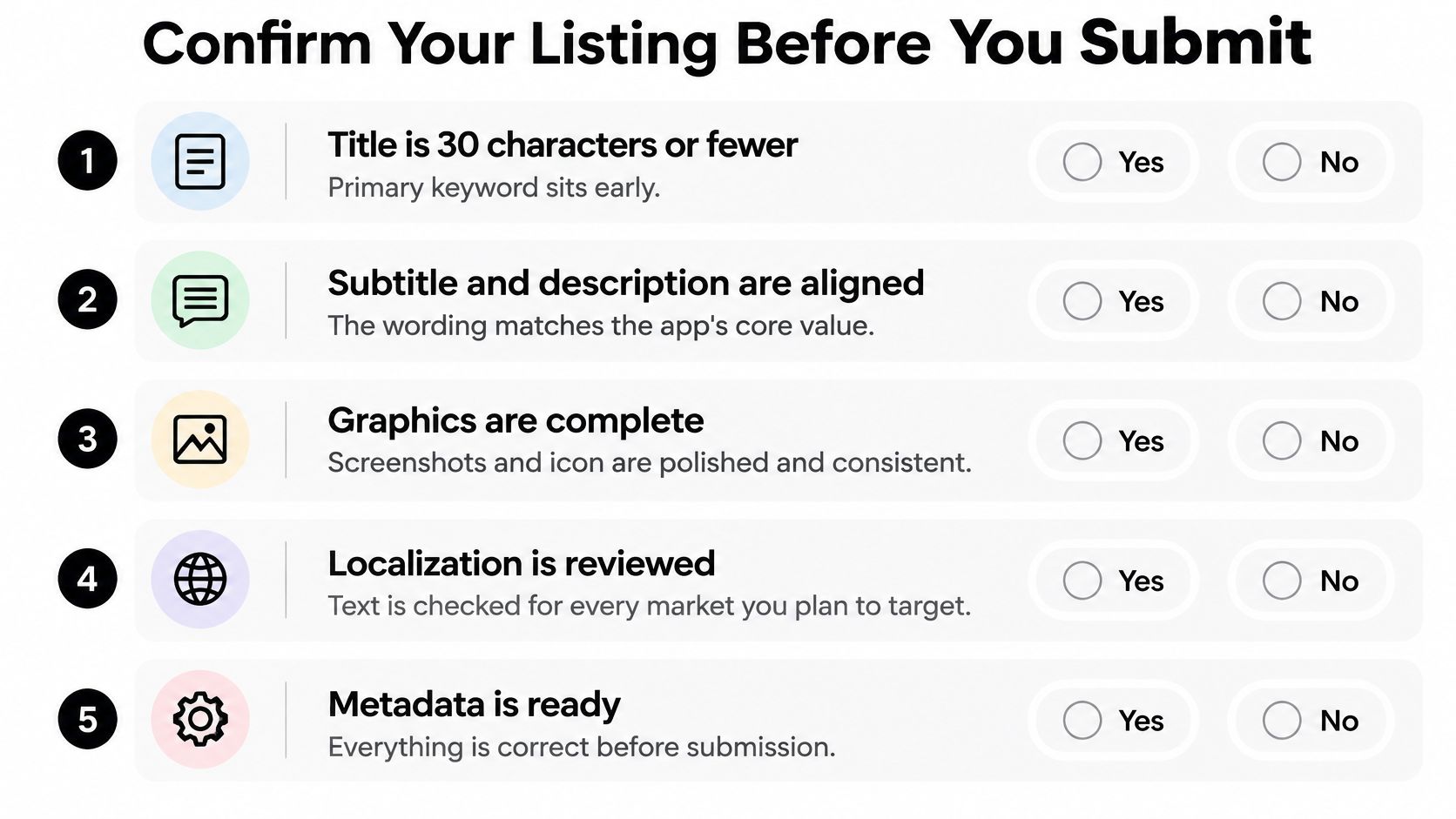
A listing can pass a copy check and still set the wrong expectation. Before submission, compare each claim and visual with the app people will install.
- Title fits the limit and leads with the keyword. Put the primary term early; avoid stacking variants.
- Short description gives a separate reason to tap. It should add to the title, not paraphrase it.
- Full description names only shipped features. Remove anything that exists only on the roadmap.
- Every visual matches the submitted build. Check the icon, screenshots, feature graphic and video against real app screens.
- The in-app ratings prompt is tested. Place it after a positive moment, not on first launch.
- One experiment is ready for the weakest asset. Record its target metric, sample-size estimate and hypothesis before changing anything.
- Account ownership is clear before submission. You must own and control your Play Console account and grant the access needed to submit. LetsDeployIt works from a customer's app and handles the native build, assets, compliance, testing and approval.
Score each item 0, 1 or 2. Start with the lowest score, name the change that would fix it, and set a deadline. A single focused correction is easier to assess than several simultaneous edits. Keep the scores and experiment notes for the next release.
If you want help preparing the listing and submission, LetsDeployIt handles store copy and ASO, screenshots for every device size, app icon refinement, a demo or preview video, compliance and submission for a flat fee. Customers bring a working app; LetsDeployIt handles the native build, assets and submission, with unlimited resubmissions until approval. For personal Play accounts, an optional add-on provides 12 testers and a 14-day closed test. Preview the app on your phone before paying anything. LetsDeployIt explains what the service includes.