App Store Keywords Optimization: Practical Steps for 2026
Learn app store keywords optimization for iOS and Google Play: field limits, placement rules, common pitfalls and quick wins to boost discoverability.

You've finished the app, prepared screenshots, and opened the store listing form. Then you reach the keywords and descriptions. Should you repeat your strongest phrase, squeeze in another feature, or keep the copy short enough that someone will read it at all? App store keywords optimization is a character-budget decision with a compliance boundary, and Apple and Google Play make you spend that budget differently.
Table of Contents
- Why Keywords Decide Who Finds Your App
- Keyword Field Limits on Apple and Google Play
- Spending the 100-Character Keyword Field and Avoiding Mistakes
- Placing Keywords Without Stuffing on Google Play
- Keyword Choices in Practice
- Audit Your Keyword Fields Before Your Next Release
<a id="why-keywords-decide-who-finds-your-app"></a>
Why Keywords Decide Who Finds Your App
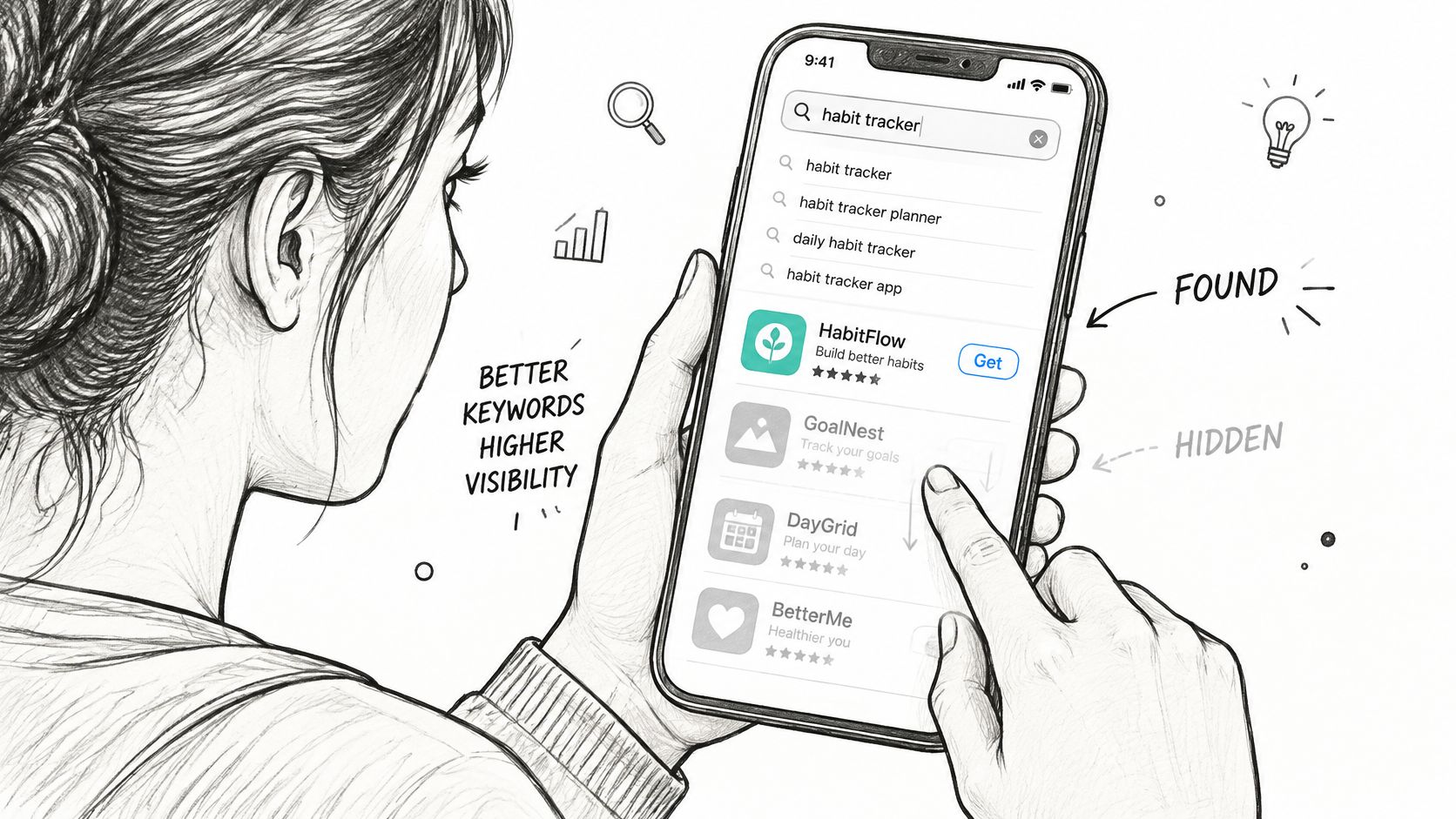
A shopper types habit tracker into a store search box and scrolls through the results. They aren't looking for your architecture, release history, or carefully chosen brand story. They want something that helps them build a routine, and your listing needs to communicate that match before they'll consider installing.
App store keywords optimization means matching your metadata to the language people use to find a product like yours. It isn't a contest to fit the most popular phrases into every available field. A useful keyword connects a searcher's task to a feature you can demonstrate.
<a id="discovery-and-persuasion-are-different-jobs"></a>
Discovery and persuasion are different jobs
Think of indexed metadata as the shop sign that helps someone find you. Conversion copy is the shelf label that explains why they should choose your product. Some fields perform both jobs, which is where the writing gets difficult.
Say your habit-tracking app supports recurring reminders and progress charts. A name built entirely around an unfamiliar brand may say little about those capabilities. Conversely, a listing crammed with variations of routine, habit, and tracker may communicate the category without giving anyone a reason to choose your app.
The practical distinction matters:
- Discovery problem: Your listing doesn't clearly address the searches you want to serve.
- Conversion problem: People reach the listing, but the benefits, screenshots, or product promise don't persuade them.
- Intent problem: You attract people looking for something your app doesn't provide.
A search impression is useful only when the person searching could reasonably become a satisfied user.
<a id="start-with-the-listing-you-actually-have"></a>
Start with the listing you actually have
Keywords aren't a guarantee of placement. They're a way to establish relevance, and relevance must survive both store review and a shopper's inspection. Unrelated phrases, protected names, and repetitive text aren't sensible substitutes for a clear product position.
Use ASO search optimization to connect keyword selection with the wider discovery process rather than treating the keyword field as an isolated task.
Before editing, copy your current app name, subtitle, keyword field, and store descriptions into a worksheet. Beside each field, write the search intent it serves today. If you can't name that intent, you've found a decision to make, not necessarily a field to fill.
<a id="keyword-field-limits-on-apple-and-google-play"></a>
Keyword Field Limits on Apple and Google Play
A habit tracker with a 28-character name still has two characters left. Spend them on a category word and you crowd the brand. Leave them empty and you have not broken a rule. On Apple, leftovers sit beside a separate 100-character keyword field shoppers never see. On Google Play, the same choice lands in text people read.
Character limits and search role for each metadata field
| Field | Store | Limit | Search role |
|---|---|---|---|
| App name | Apple App Store | 30 characters | Indexed for search |
| Subtitle | Apple App Store | 30 characters | Indexed for search |
| Keyword field | Apple App Store | 100 characters | Hidden, indexed, comma-separated |
| Promotional text | Apple App Store | 170 characters | Not a substitute for indexed keywords |
| Description | Apple App Store | 4,000 characters | Shopper-facing explanation, not a keyword field |
| App name | Google Play | 30 characters | Indexed, primary concept |
| Short description | Google Play | 80 characters | First text shoppers see |
| Full description | Google Play | 4,000 characters | Supporting terms in readable sentences |
Google Play's store-listing guidance sets the app-name limit at 30 characters, the short description at 80 characters, and the full description at 4,000 characters. Those allowances total 4,110 characters, and they are not interchangeable. A character in the 30-character name carries the primary concept into search results. A character late in the 4,000-character description only helps if the sentence still explains the product.
Apple's searchable budget is smaller and split. Name and subtitle are 30 characters each, and both are indexed. The keyword field adds 100 hidden characters under Apple's search guidance. Promotional text (170 characters) and the 4,000-character description do not replace that indexed set. Stuffing queries into promotional text spends a field shoppers see and does not buy the coverage the keyword field is for.
<a id="hidden-space-versus-visible-space"></a>
Hidden space versus visible space
Apple's keyword field is a compliance-bounded allocation. Keep useful search language, drop repeats, and do not write it like an ad. I would rather cut a near-duplicate than pad the field to 100.
Google Play puts that job in visible metadata. A phrase in the title or short description has to show relevance without making the listing awkward. A matching term is still a poor spend if it muddies the opening line or pushes the benefit out of the 80-character short description.
The name needs the most care on both stores. Shoppers meet it in results and on the product page. Put the clearest product concept there when it fits the positioning. Do not assign a precise ranking weight to any field, and do not trade a recognizable name for one more adjective.
Budget rule: Available characters are capacity, not a requirement to write more.
<a id="count-before-you-rewrite"></a>
Count before you rewrite
In a spreadsheet, record the current text, the character count, the query that text should serve, and the proposed replacement. A LEN formula checks ordinary text. Confirm the pasted version in the store console. Punctuation, line breaks, and copied formatting can change the count you approved in a document.
Flag a short field for review, not automatic expansion. A 12-character title can be the right name. A long description is waste when it repeats the opening benefit and never answers the next question a shopper has.
Keep the last accepted metadata beside the draft. That makes an intentional cut easy to tell from an accidental edit.
<a id="spending-the-100-character-keyword-field-and-avoiding-mistakes"></a>
Spending the 100-Character Keyword Field and Avoiding Mistakes
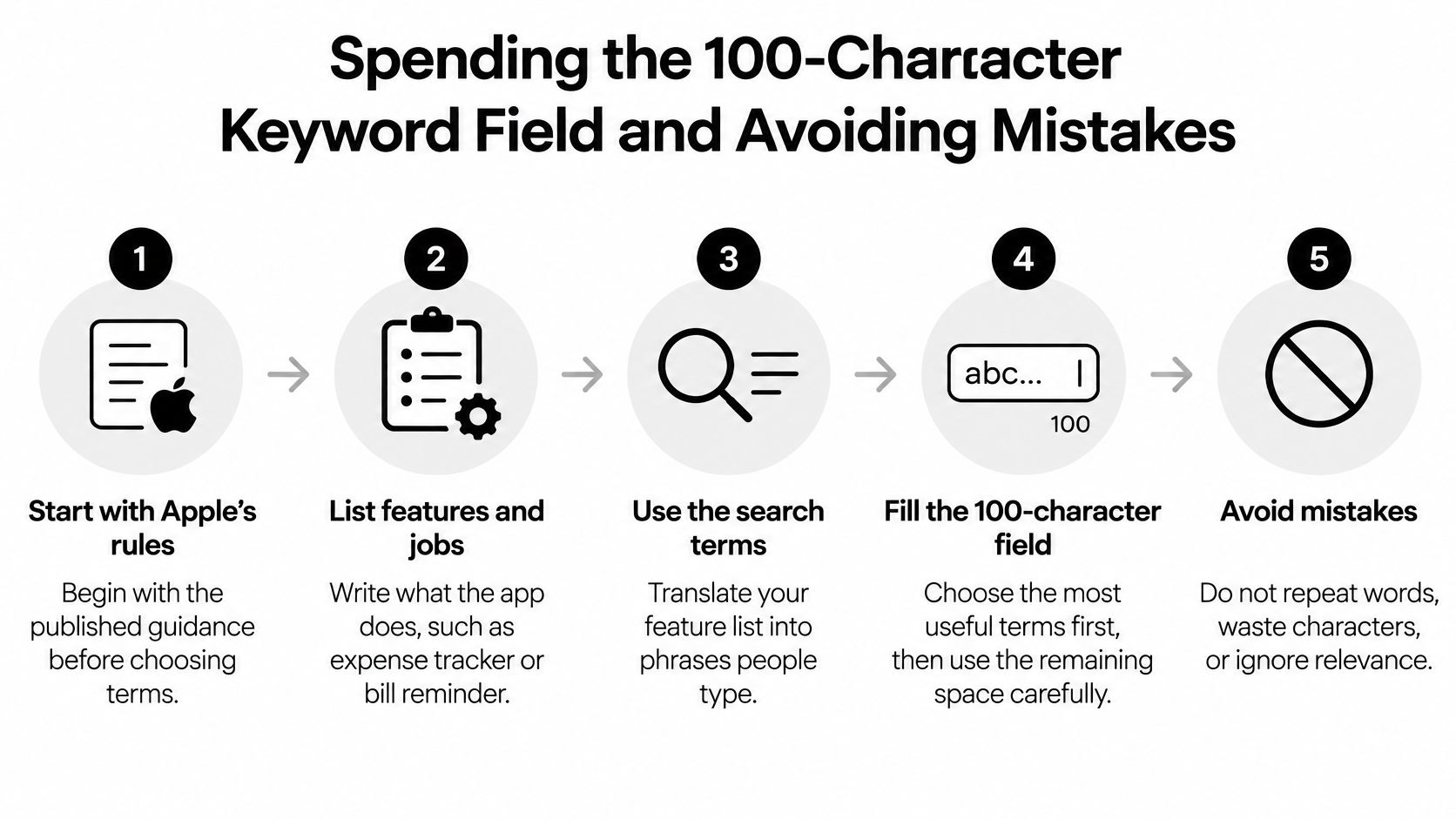
Apple's App Store search guidance gives the keyword field a 100-character limit, tells developers to separate keywords with commas without spaces between individual terms, and identifies improper keyword use as a common reason for rejection. It also advises against duplicating words already in the app name, subtitle, or category, along with plurals, generic terms, and irrelevant or protected expressions.
Use this workflow to turn a feature inventory into a submission-ready field.
<a id="build-the-field-from-product-evidence"></a>
Build the field from product evidence
-
List features and jobs. Write what users accomplish, such as recording expenses or remembering bills. Internal feature names are starting points, not necessarily search language.
-
Translate jobs into queries. Check store suggestions, relevant category listings, user reviews, and any search information available for your app. Record candidates without pretending suggestions are measured search volume.
-
Remove existing coverage. Compare the candidates with the app name, subtitle, and category. Reusing those words spends space without expanding the vocabulary you've supplied.
-
Delete low-value additions. Remove unnecessary plural forms, generic words such as app or game, and promotional filler. Keep a term because it describes a useful capability, not because it sounds impressive.
-
Format deliberately. Separate individual terms with commas and omit spaces after them. Preserve spaces only where you deliberately need a multiword phrase.
-
Prioritize before counting. Put the strongest, most defensible candidates at the top of your working shortlist, then assemble the field within its allowance. This is an editing priority, not a claim that earlier positions receive more ranking weight.
-
Run a relevance and rights check. Remove competing app names, unauthorized trademarks, celebrity names, and unrelated expressions. Finish with complete terms rather than cutting a word to fit.
<a id="apply-the-rules-without-inventing-intent"></a>
Apply the rules without inventing intent
Say a fitness logger has Fitness Log in its name and Track Workouts and Progress in its subtitle. A draft containing those same words doesn't add much coverage. Replace duplicated language with supported capabilities such as strength, sets, reps, rest, or history, provided the app offers them.
Don't label every added word a distinct user intent. Sets and reps may support the same strength-training task. The objective is broader relevant coverage, not an impressive count of keywords.
Keyword mistakes, why they hurt and how to fix them
| Mistake | Why It Hurts | Fix |
|---|---|---|
| Repeating words already in the app name | Burns space that could cover another feature | Keep the hidden field focused on additional terms |
| Plurals and singulars both listed | Spends space Apple advises developers to conserve | Keep the appropriate form |
| Spaces after commas in the keyword field | Uses characters without adding meaning | Use commas alone between individual terms |
| Generic terms such as app or game | Adds little product-specific intent | Name the feature or problem |
| Competitor or trademarked names | Creates rejection and rights risks | Use relevant, unprotected category language |
| Repetitive keyword lists in the Google Play full description | Creates spam risk and weakens readability | Explain features in natural sentences |
Use the video as a companion when reviewing your metadata workflow.
<iframe width="100%" style="aspect-ratio: 16 / 9;" src="https://www.youtube.com/embed/m09QYqWsodQ" frameborder="0" allow="autoplay; encrypted-media" allowfullscreen></iframe>The final test is concrete: Can you point to the screen or workflow that fulfills each term? If not, remove it before submission.
<a id="placing-keywords-without-stuffing-on-google-play"></a>
Placing Keywords Without Stuffing on Google Play
Google Play has no equivalent hidden keyword field. Your search language belongs in copy that shoppers can read, so the challenge is assigning each phrase a useful job, not distributing repetitions across a page.
Google Play's metadata policy requires honest, relevant metadata and warns against repetitive or unrelated keywords; Google also supports up to 50 custom store listings customized by country, user or buyer state, or search keyword. Treat policy compliance as a constraint on every draft, not a final check after you've optimized it.
<a id="give-each-field-a-clear-purpose"></a>
Give each field a clear purpose
The title identifies the product. For an illustrative habit app, Steady Habit Tracker communicates both the name and category. Don't bolt on loosely related concepts just because you'd also like to appear for productivity or calendar searches.
The short description states the benefit. A draft such as Build daily routines with reminders and a clear view of your progress explains the value without becoming a keyword inventory. The reader should understand what improves after installing.
The full description explains the workflow. Describe how users create habits, schedule reminders, and review progress. Supporting phrases belong where you explain the matching feature, with enough context to distinguish your product from a generic category listing.
A readable sentence can naturally contain a useful search phrase. A block of near-identical phrases forces shoppers to decode your marketing instead of understanding the app. Use the ASO description guide when converting a keyword map into benefit-led copy.
<a id="segment-only-when-the-audience-changes"></a>
Segment only when the audience changes
Custom listings are useful when different audiences need different explanations of the same product. For a tool that supports both workflows, developer-oriented copy could emphasize React Native deployment, while launch-oriented copy could emphasize App Store approval preparation.
The trade-off is maintenance. Each variation needs accurate wording, matching creative, and a reason to exist. Creating variations around interchangeable synonyms adds work without establishing a meaningful hypothesis.
- Define the audience: Record who should see the variant and why their needs differ.
- Choose the change: Adjust the benefit emphasis or use-case explanation rather than rewriting everything.
- Keep a comparison: Track the existing listing and record other changes that could affect results.
Compare impressions, store-listing visitors, conversion rate, and installs over a stable observation period. Where the console doesn't expose query-level detail, don't manufacture keyword attribution from listing-level results.
<a id="keyword-choices-in-practice"></a>
Keyword Choices in Practice
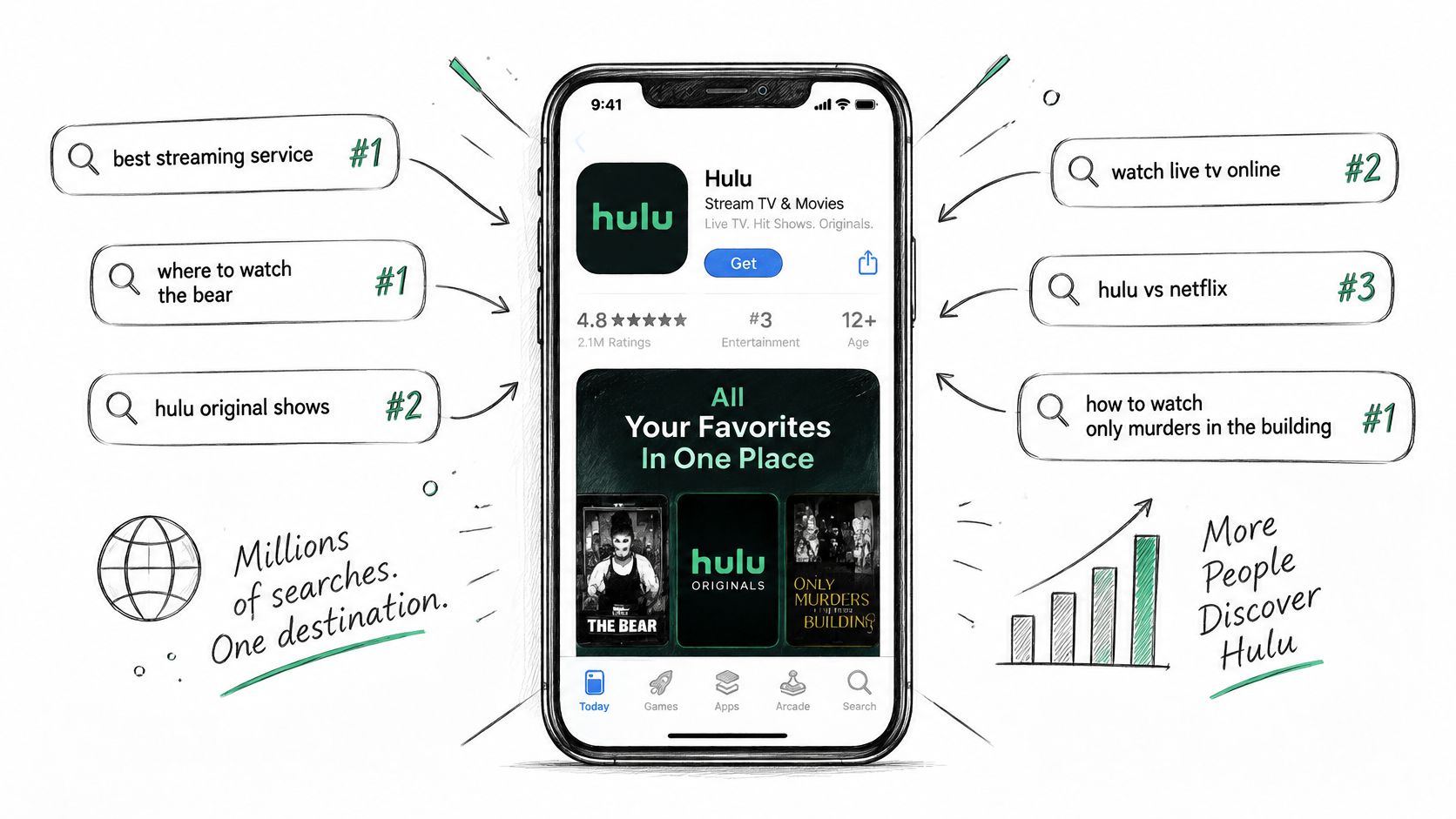
In July 2024, Hulu was discovered through more than 5,000 App Store search terms in the United States, including 200 terms that placed it among the top 10 results, according to Statista's streaming-app search-term figures. That illustrates search breadth for an established streaming app, not a benchmark a new app should expect to reproduce.
The useful lesson is narrower: don't build your entire plan around a single category phrase. Consider the related jobs your app serves, then select the ones your product and listing can credibly support.
<a id="a-budgeting-app-with-a-specific-audience"></a>
A budgeting app with a specific audience
Say you're launching a React Native budgeting app called PairBudget. It lets couples record expenses, manage shared spending, and schedule bill reminders. React Native matters to the development team, but it isn't the consumer benefit, so it doesn't belong in the keyword strategy.
The initial candidate list includes expense tracker, shared budget, budget for couples, and bill reminders. These are illustrative candidates, not claims about measured demand.
| Field | Illustrative draft | Decision behind it |
|---|---|---|
| Apple app name | PairBudget Expense Tracker | Establish the core task |
| Apple subtitle | Shared Budget for Couples | Identify the audience and use case |
| Apple keyword field | bills,reminders,spending,household | Add supported vocabulary absent from the visible fields |
| Google Play short description | Track shared spending and plan household bills together. | Explain the practical benefit |
The hidden-field draft is deliberately unfinished. You'd inspect category overlap, validate the final text in the console, and add only candidates supported by the product. Empty capacity doesn't justify unrelated terms.
<a id="decide-what-to-leave-out"></a>
Decide what to leave out
Drop app because it doesn't distinguish the product. Leave free out of this search strategy rather than using pricing language as a substitute for a feature. Exclude receipt scanning if users can't scan receipts, even if competing budgeting products prominently advertise it.
The strongest shortlist also records why plausible keywords were rejected.
Use app store keyword analysis to organize the next decision around evidence. Watch which intent groups gain visibility and whether the resulting visitors install. If shared-budget messaging attracts interest but few installs, inspect whether the screenshots clearly demonstrate collaboration before replacing the keyword itself.
<a id="audit-your-keyword-fields-before-your-next-release"></a>
Audit Your Keyword Fields Before Your Next Release
Run the audit against the actual submission text, not an old document. A metadata strategy is difficult to evaluate when nobody can establish which version went live or why a phrase was added.
Keep the accepted version, proposed revision, and reason for each change together. That gives the person preparing the release a usable handoff and gives the person reviewing results something more reliable than memory.
<a id="a-release-ready-checklist"></a>
A release-ready checklist
-
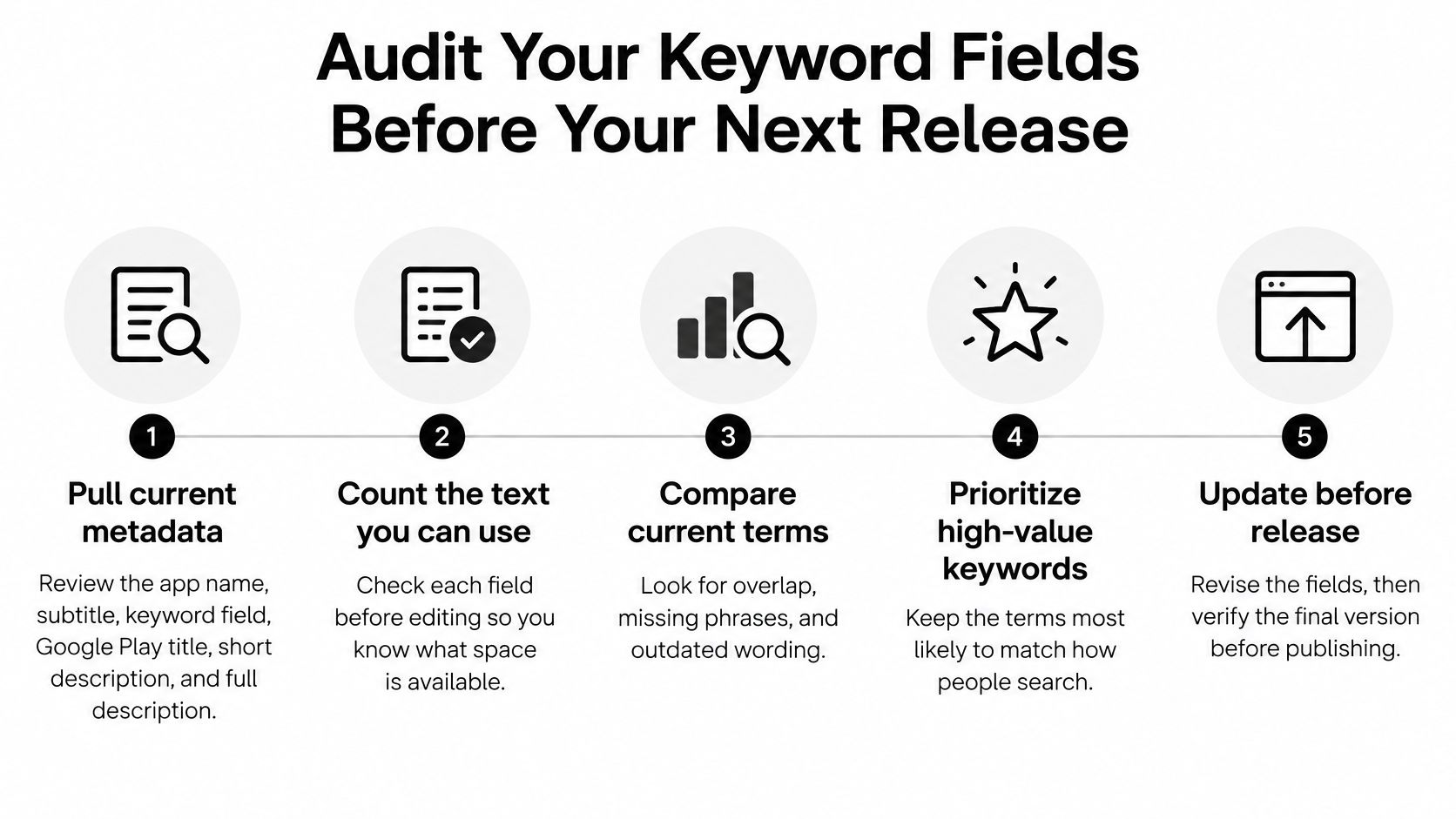
Pull current metadata. Export or copy the Apple app name, subtitle, and keyword field, plus the Google Play title and descriptions. Include the relevant locale and storefront so you don't compare different audiences accidentally.
-
Count and validate. Check the text against the applicable field allowances, then paste the final version into the console. Look for truncation, unintended whitespace, and punctuation introduced during editing.
-
Flag questionable terms. Mark duplicated words, unnecessary variants, generic additions, outdated features, and protected names. Give each flagged term a decision rather than deleting words mechanically.
-
Map the remaining language to intent. Connect each target group to a real workflow and the creative that demonstrates it. A promise about shared budgeting should be visible in the product and understandable in the screenshots.
-
Prepare a controlled Google Play comparison. Choose a custom-listing hypothesis with a distinct audience or benefit emphasis. Keep unrelated changes out of the comparison where possible, and record unavoidable differences.
-
Review the full acquisition path. Examine visibility, listing visits, conversion, and installs after the comparison has had time to produce useful observations. Don't interpret a small fluctuation or an isolated ranking movement as proof.
Use the checklist visual during the final metadata review.
<a id="decide-who-prepares-the-final-fields"></a>
Decide who prepares the final fields
An outside launch service can prepare the copy and submission materials, but your product evidence and performance should still guide the keyword decisions. Keep ownership of the target audience, supported claims, and measurement plan.
At LetsDeployIt, our Launch plan includes metadata, description, and keywords. In Weeks 1 to 2, AI drafts the store listing copy, ASO keywords, screenshots, app icon polish, and policy, with human sign-off at every step. That provides drafting and review support, not a promise of a particular search position.
Audit the fields first. Then decide whether your team should write the revisions in-house or hand over a clear product brief and keyword map for launch preparation.
LetsDeployIt offers done-for-you store submission support, including listing metadata, descriptions, and ASO keywords. Visit LetsDeployIt with your working app and target audience so we can help turn your keyword priorities into store-ready listing copy.