ASO Search Optimization: How App Store Ranking Works
ASO search optimization explained: how app store ranking signals work, Apple Search Ads vs organic search, and how to build a practical ASO plan.

An average of 440,896,463 customer accounts searched the App Store each week in 2024, and 1,961,596 apps sat on that store, according to Apple's 2024 App Store Transparency Report. The same report found that 1,377,468 apps reached the top 10 results for at least 1,000 searches across the period. That is the market ASO search optimization has to work in. A clever title doesn't win by itself. The listing has to match the query, then the product has to earn the behavior that holds a rank.
Table of Contents
- How App Store Search Ranks Apps
- How to Allocate Metadata Before Launch
- When High-Volume Keywords Backfire
- Apple Search Ads vs Organic Search Results
- How to Test Listings Once Impressions Arrive
- Set Your Search Priorities Before Submission
<a id="how-app-store-search-ranks-apps"></a>
How App Store Search Ranks Apps
Think of store search as two gates, not one score. Metadata decides whether an app is eligible for a query. Behavior decides where it sits once the store has indexed it. Apple reads text relevance from the app title, keywords, and primary category, then weighs downloads plus the number and quality of ratings and reviews. Google Play works the same idea on a larger map. Google's 2024 Play transparency data recorded an average of 1,924,817,991 customer accounts searching the Play Store each month, and an average of 847,457 apps receiving at least 1,000 search impressions per month.
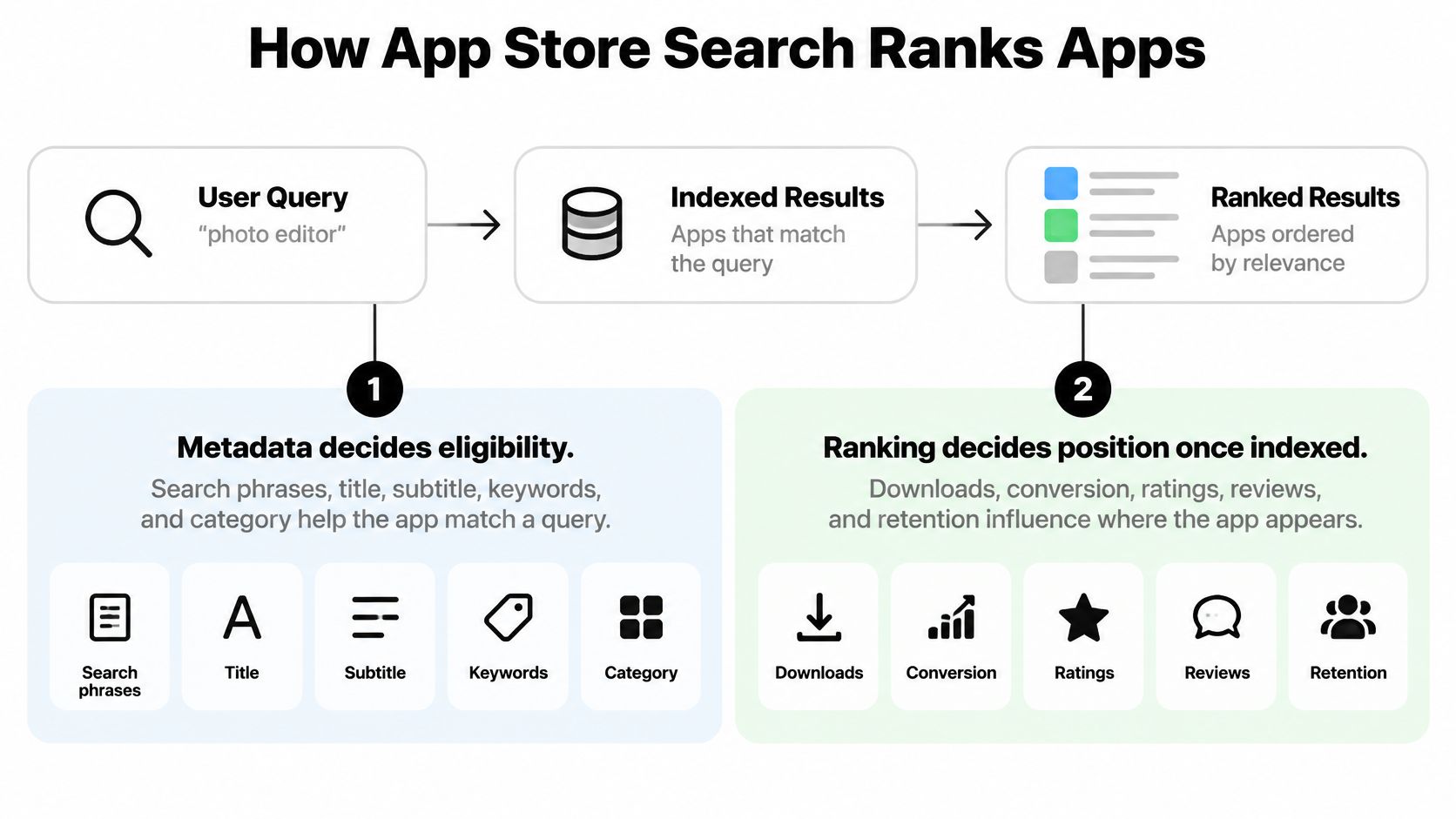
A new sleep app with "bedtime stories" in the name can show up for that phrase even with almost no installs. It won't stay near the top if people open the listing and leave, or if the few who install rate it poorly. Metadata gets you into the candidate set. Conversion, ratings, reviews, and retention sort that set.
<a id="what-you-edit-and-what-you-earn"></a>
What you edit and what you earn
Editable fields are decisions you make before anyone searches. Earned signals only exist after real people arrive, and you read them in App Store Connect or Play Console rather than by rewriting a field.
| Signal | Store | What It Measures | Editable Before Launch |
|---|---|---|---|
| App name | Apple, Google Play | Words that match query intent | Yes |
| Subtitle | Apple | Secondary relevance terms within 30 characters | Yes |
| Keyword field | Apple | Up to 100 characters of comma-separated terms | Yes |
| Short description | Google Play | Up to 80 characters of ranking and conversion copy | Yes |
| Full description | Google Play | Indexed body text covering features and use cases | Yes |
| Primary category | Apple, Google Play | Alignment between the app and the query's category | Yes |
| Downloads and conversion | Apple, Google Play | Share of listing visitors who install | No, earned after launch |
| Ratings and reviews | Apple, Google Play | Number and quality of ratings | No, earned after launch |
| One-day retention | Google Play | Whether new installs stay engaged | No, earned after launch |
Practical rule: If a field is a Yes, finish it before you submit. If it is a No, don't pretend a keyword edit will fix a product people abandon.
Play Console's acquisition reports show clicks, acquisitions, and how discovery features contribute. Use them to see whether a rank problem is "nobody is finding us" or "people find us and don't install."
<a id="how-to-allocate-metadata-before-launch"></a>
How to Allocate Metadata Before Launch
Treat the character limits as a budget. Every repeated word is a search phrase you didn't cover.
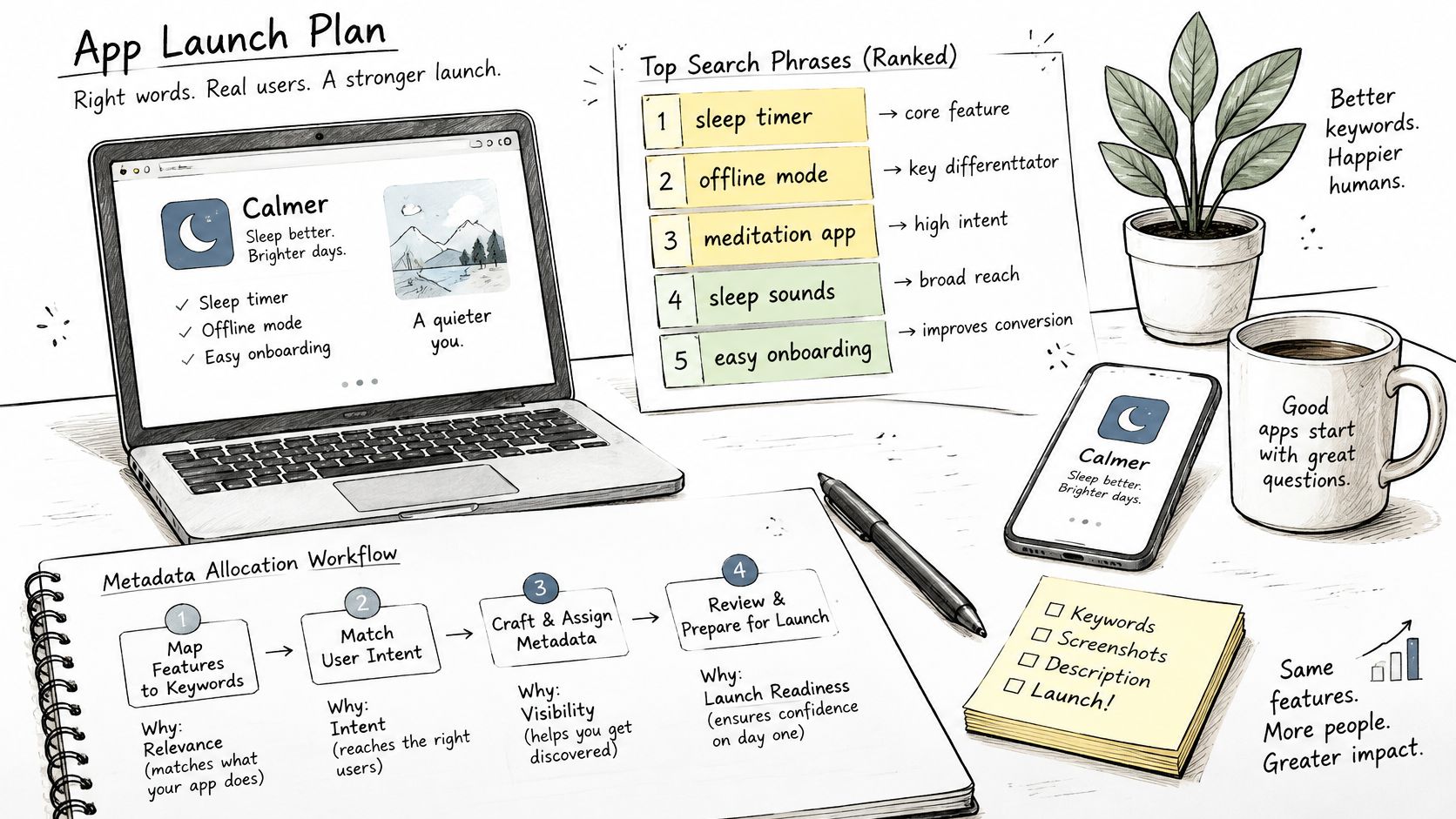
- List 20 to 30 phrases tied to real features, then rank them by intent. A sleep app might collect "sleep timer," "offline stories," "white noise," and "nap alarm," and put the phrase closest to the core job at the top.
- Put the highest-intent concept in the Apple app name, and the strongest secondary idea in the 30-character subtitle. Those visible fields carry the most relevance weight, so they should name the job, not a slogan.
- Fill the keyword field with comma-separated terms and no spaces. Apple's App Store search guidance limits that field to 100 characters and says words already in the name, subtitle, or category shouldn't be repeated, because duplicates add no coverage. Apple also notes that popular terms can bring substantial traffic but are highly competitive, while less-common terms generally bring lower traffic and lower competition.
- Check that every term matches something the app does. A phrase you can't deliver will still earn the impression, then lose the install and the rating.
- Choose the primary category that matches the core use. A meditation app filed under Utilities is asking the store to match it to the wrong neighborhood of queries.
- On Google Play there is no keyword field. The title allows 30 characters, the short description 80, and the full description 4,000. Place target phrases where they still read as sentences, not as a list.
- Skip promotional text when you are trying to rank. Apple states that it doesn't affect search ranking. Use it for a sale or a new feature, then change it without a new binary.
Say the sleep app's name is "Lumen Sleep" and the subtitle is "Bedtime stories." The keyword field might be breathing,insomnia,nap,offline,timer,whitenoise rather than typing "sleep" again. A fuller walk-through of field order sits in this guide to App Store Connect keywords.
<a id="a-human-still-has-to-read-it"></a>
A human still has to read it
Read the name and subtitle out loud. If it sounds like a keyword dump, store visitors will bounce before any rank signal can help. On Play, the first lines of the full description show before "more," so lead with the outcome, then the features, and mention the core phrase a few times in normal sentences. Don't stuff.
<a id="when-high-volume-keywords-backfire"></a>
When High-Volume Keywords Backfire
The usual habit is to chase the biggest phrase in the category. "Photo editor" and "budget tracker" look like free growth because the search volume is obvious. For a new app they often do the opposite. The incumbents already convert, already have ratings, and already match a wide set of intents. Your listing gets the leftover traffic, including people who wanted a different product.
Walk through a launch week. A journaling app forces "budget tracker" into the name because the volume looks large. Impressions jump. Most visitors wanted bank connections and bill reminders, which this app doesn't have. Install rate stays weak. The few installs leave one-star reviews that say the app isn't a budget tool. Relevance didn't fail. The query and the product didn't match, and the behavior that follows can push the app down for the phrases it deserves.
Ask three questions when visibility drops, in this order:
- Did the query still match? Check whether you removed a term, changed category, or started ranking for a broader phrase than the features support.
- Did the product page stop converting? Compare listing visitors with installs. A softer icon, a vague first screenshot, or a claim the screenshots don't show will cut installs without any metadata change.
- Did the in-app experience slip? Crashes, a slow first screen, or a paywall before any value shows up in reviews. Those reviews are a ranking input, not just a public comment thread.
A broad term is a good target only when the app is what most people typing that term expect to get.
Prefer feature combinations people can verify in the first session, such as "receipt scan for freelancers" rather than "finance." Judge the bet by installs that stick, not by impression counts. A practical way to sort volume from fit is this app store keyword analysis workflow, which keeps difficulty next to relevance so a vanity phrase doesn't crowd out a term you can win.
<a id="apple-search-ads-vs-organic-search-results"></a>
Apple Search Ads vs Organic Search Results
Organic results and Apple Search Ads can sit on the same search page, and they don't share a score. Organic position comes from the listing and from what people do after they find it. Sponsored slots come from an auction. Bids and relevance decide who appears, and you pay for the taps or installs your bid model charges.
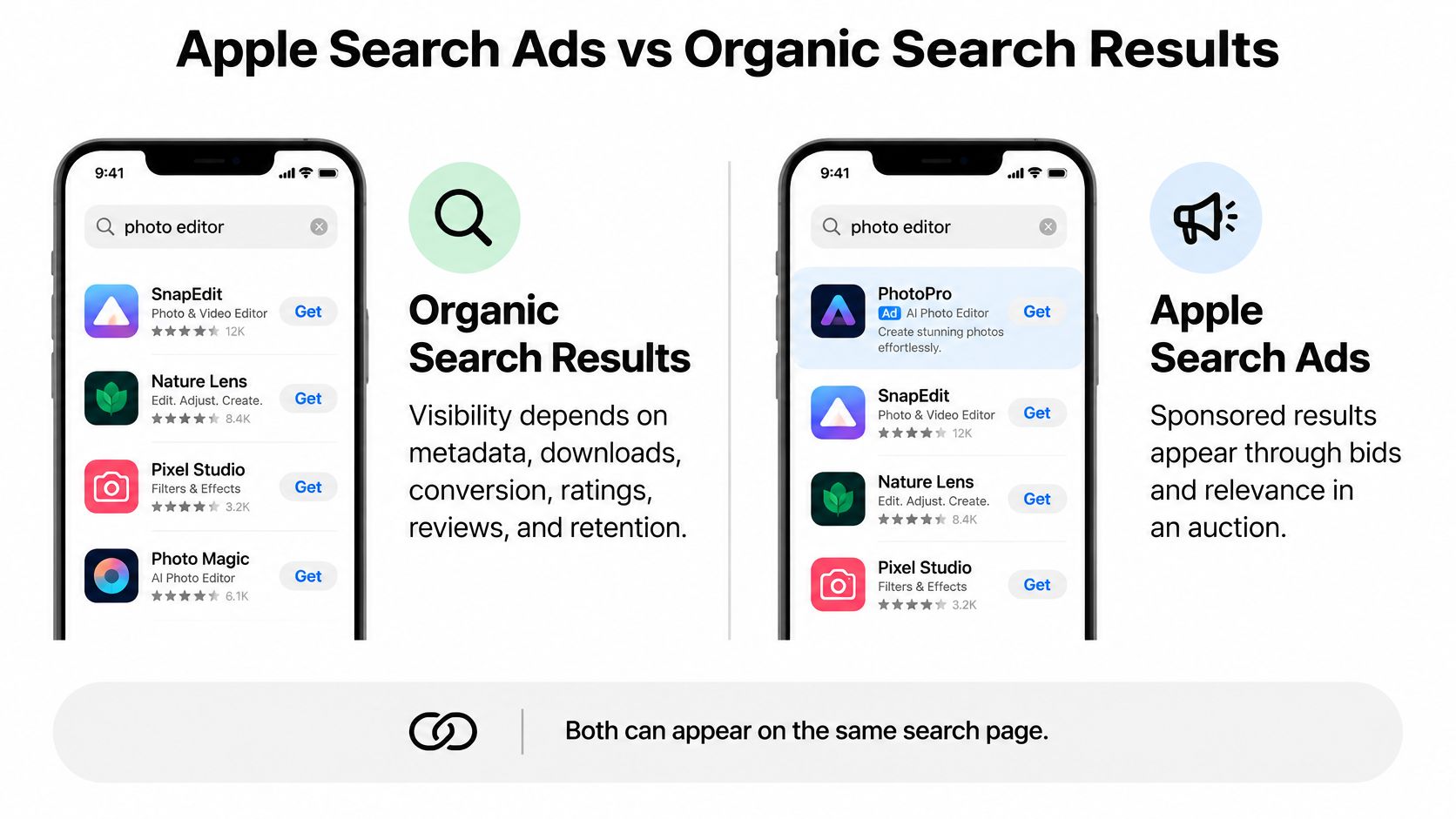
| Factor | Organic Search | Apple Search Ads |
|---|---|---|
| Placement | Ranked results for each query | Sponsored slots in search results |
| What sets position | Relevance, downloads, ratings and category | Bid amount and relevance within the auction |
| Cost | No store fee for appearing in results | Charged per tap or per install under the chosen bid model |
| Time to results | Builds over weeks as behaviour data accumulates | Visible once the campaign is live and approved |
| Main levers | Metadata, conversion and product quality | Budget, bids and keyword match settings |
| Measurement | Store analytics for impressions and downloads | Campaign reports for taps, installs and spend |
A new recipe app with no ratings yet can run a small campaign on "meal planner" and "grocery list," the phrases that describe what it does. The campaign produces taps, installs, and a cost for each, which tells you which phrase is worth keeping. It doesn't hand you an organic rank. Organic position still depends on downloads, ratings, and whether people stay. Paid volume can add downloads, and downloads are one organic input, but a paid spike doesn't replace a listing people trust.
Teams that already compare channels on the web can borrow the same split. Data Hunters Agency's search channel comparison lays out how paid and organic search differ in cost, control, and how long results last, which maps cleanly onto this store choice.
The working rule is simple. Use paid search to learn which terms convert, then fold the proven phrases into the name, subtitle, keyword field, or Play description. Pause terms that spend and don't install. Keep the organic listing pointed at the phrases the auction already validated.
The short walk-through below shows how a search campaign is built beside the organic listing, not instead of it.
<iframe width="100%" style="aspect-ratio: 16 / 9;" src="https://www.youtube.com/embed/66kBpA0K5xo" frameborder="0" allow="autoplay; encrypted-media" allowfullscreen></iframe><a id="how-to-test-listings-once-impressions-arrive"></a>
How to Test Listings Once Impressions Arrive
Once impressions show up, stop rewriting five things at once. Google's Store Listing Experiments test localized text and graphics, including icons, videos, and screenshots. Google's store listing experiments guidance says to change one asset at a time and to run a test for at least one week so weekday and weekend behavior both show up. Apple's product page tests in App Store Connect follow the same one-variable idea.
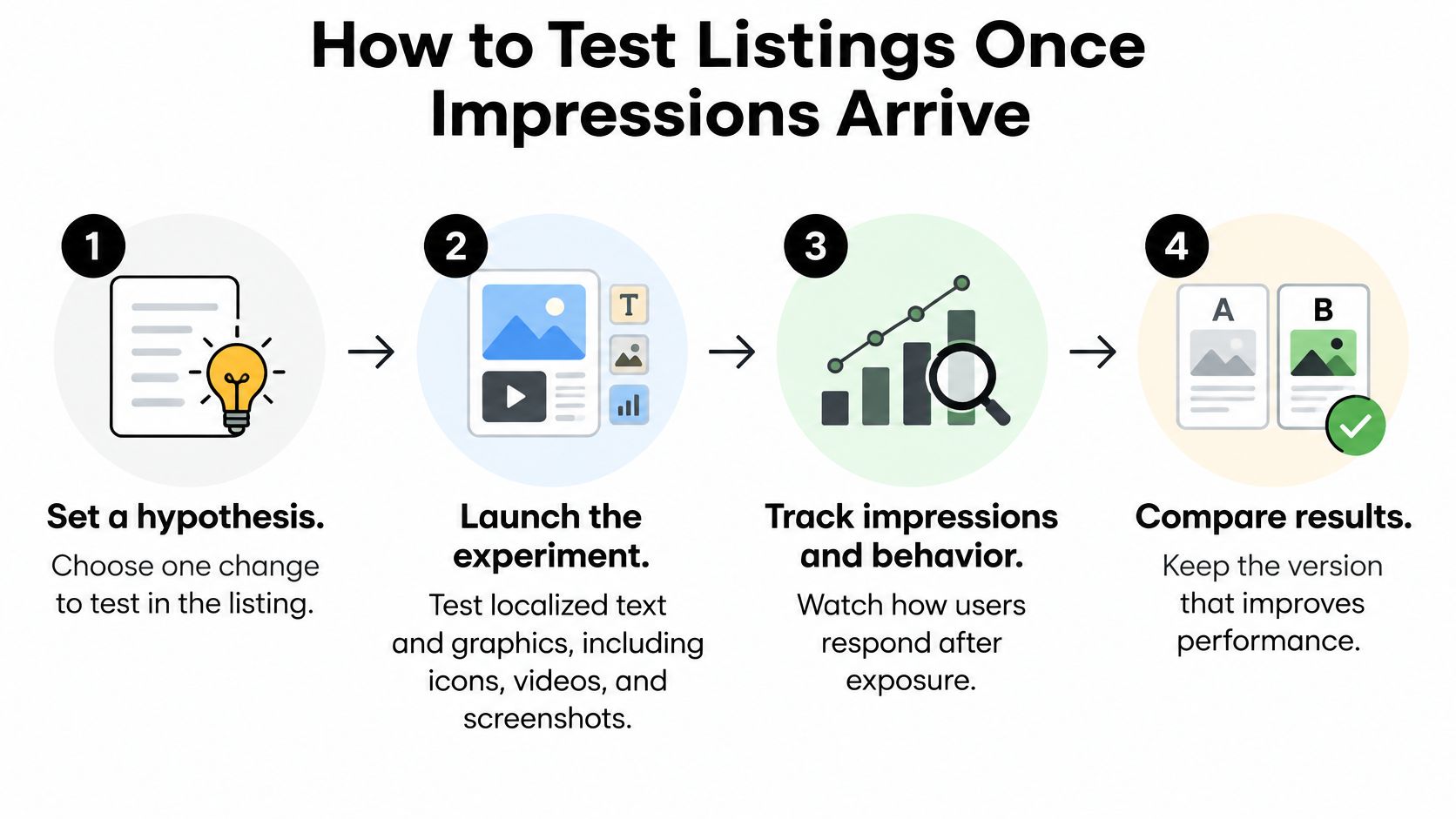
- Set a control that matches the live page. If the control isn't the current listing, you won't know what the variant beat.
- Change one asset. A clean first test is benefit-led screenshot headlines against feature-led headlines. Leave the icon alone until that test ends.
- Run it for at least seven days. A Monday-only sample misses the weekend crowd, which often searches and installs differently.
- Segment by country, language, traffic source, and acquisition state. A winning icon in one market can lose in another, so a global "winner" can be a local mistake.
- Read one-day retention before you ship the variant. Play Console shows acquisition and one-day retention by variant, so you can see early quality, not just the tap.
CTR here is the share of listing visitors who clicked Install, Open, or Pre-register. A higher CTR means more of the people who saw the page started an install. It doesn't mean they stayed.
| Result Pattern | What It Suggests | Next Move |
|---|---|---|
| CTR up, one-day retention up | Product-message fit is strong | Keep the variant and test the next asset |
| CTR up, one-day retention down | Creative overpromises what the app delivers | Revise claims to match real functionality |
| CTR flat, one-day retention down | Traffic mismatch or weak first-run experience | Check query intent before changing creative |
| CTR down | Variant is weaker than the control | Revert to the control and test a different hypothesis |
Screenshot order is usually the highest-impact creative test, because those frames do the explaining. This breakdown of app store optimization screenshots shows how to pair a headline with one feature per frame so the test has a real hypothesis. Revisit winners when the audience, country mix, or season changes. A summer travel caption shouldn't be the control in January.
<a id="set-your-search-priorities-before-submission"></a>
Set Your Search Priorities Before Submission
Rank the work in the order the stores can use it. Stage one is the submission itself. On Apple, the name, subtitle, 100-character keyword field, and primary category have to be right in the first binary you care about, because changing them later means another review. On Play, the title, short description, and full description carry the phrases, and you can iterate faster, but a sloppy first version still wastes the earliest impressions.
Stage two starts when those impressions exist. Test the icon, the first screenshots, and the short pitch one variable at a time, and keep the variant only when installs and early retention move together. Stage three is the product. Ratings, review quality, crashes, and whether new users come back decide whether a rank holds after the listing is already indexed. A weak stage-one listing burns the traffic that stage three would need in order to look healthy.
Our launch work includes store listing copy and ASO, screenshots in every device size, and the app icon, splash, and adaptive icons, so stage one isn't a blank form on submission day. Store fees are a separate budget line. The Apple Developer account fee is $99 per year, and the Play Console fee is $25 one time. Neither is part of a listing-and-submission price, and neither buys rank.
Arch's practical app launch playbook is a useful companion for the non-search parts of week one, from store accounts to the review queue, so search work doesn't collide with a rejected binary.
Before you hit submit, write down three decisions:
- Which phrases must be in the first submission, and which fields hold them, with no word repeated on Apple.
- Which listing test runs in weeks one to four, and what single asset it changes.
- Which retention line triggers a product update rather than another metadata edit. If new users leave on day one, the next release is a product fix, not a new subtitle.
LetsDeployIt prepares App Store and Google Play listings for React Native and Expo apps, including ASO keywords, store copy, and screenshots sized for every device, then submits and answers reviewer messages. If you want that first metadata pass handled before real search traffic arrives, visit LetsDeployIt and send the build you already have.